Kanban Board

TUI Kanban board for visualizing and managing tasks

The ait board command launches an interactive terminal-based kanban board for managing your tasks visually. Built with Textual, it provides a full-featured TUI with columns, task cards, inline metadata editing, git integration, and keyboard-driven navigation.
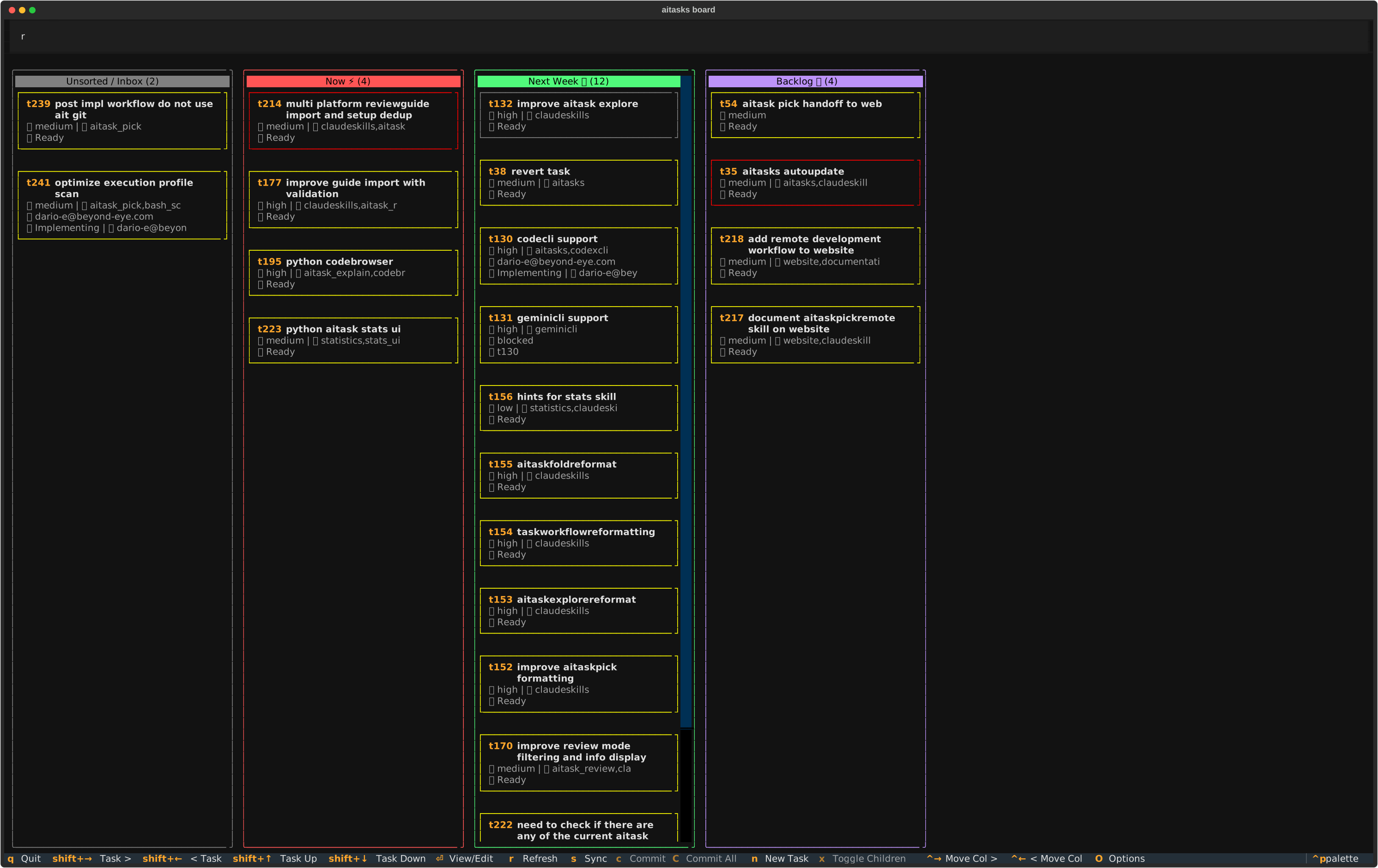
Board overview showing kanban columns with task cards

The ait board kanban view with task cards organized into columns

Tutorial

Launching the Board

ait board

The board reads all task files from aitasks/*.md and displays them as cards organized into kanban columns. On first launch, it creates a default configuration with three columns: Now, Next Week, and Backlog.

Understanding the Layout

The board has four main areas from top to bottom:

  1. Header — Application title bar
  2. Filter area — Contains a View Selector on the left (showing a All │ g Git │ i Impl) and a Search box on the right. The view selector switches between task view modes; the search box filters tasks by text. Both start unfocused.
  3. Board area — Horizontally scrollable columns, each containing vertically stacked task cards
  4. Footer — Dynamic keybinding help that changes based on context

Columns are displayed left to right. Each column has:

  • A colored header showing the column title and task count (e.g., “Now (5)”)
  • Task cards stacked vertically below the header

An Unsorted / Inbox column appears automatically on the left when there are tasks that haven’t been assigned to any column.

All navigation is keyboard-driven:

  • Arrow Up / Down — Move between task cards within a column
  • Arrow Left / Right — Jump to the adjacent column (skips empty columns, tries to preserve your vertical position)
  • a / g / i — Switch view modes: All tasks, Git-linked tasks, or Implementing tasks (see How to Filter by View Mode)
  • Tab — Toggle focus to the search box
  • Escape — Return focus from the search box to the board, or dismiss an open dialog
  • q — Quit the application

When you focus a card, it receives a double cyan border to indicate selection. The card also scrolls into view automatically.

Reading a Task Card

Each task card displays a summary of the task information:

From top to bottom, a card shows:

  • Task number and title — e.g., “t47 playlists support”. The number appears in cyan. If the file has uncommitted git changes, an orange asterisk (*) appears after the number.
  • Info line — Shows effort level (e.g., “💪 medium”), labels (e.g., “🏷️ ui,backend”), and issue platform indicator (“GH” for GitHub, “GL” for GitLab, “BB” for Bitbucket).
  • Status line — Shows either “🚫 blocked” (if the task has unresolved dependencies) or “📋 Ready” (or other status). If assigned, shows “👤 name”.
  • Dependency links — If blocked, shows “🔗 t12, t15” linking to blocking tasks.
  • Folded indicator — Shows “📎 folded into t42” if this task was merged into another.
  • Children count — Shows “👶 3 children” for parent tasks with subtasks.
  • Lock indicator — Shows “🔒 user@example.com” if the task is currently locked by someone (see How to Lock and Unlock Tasks).

The card’s border color indicates priority:

  • Red — High priority
  • Yellow — Medium priority
  • Gray — Low or normal priority

Opening Task Details

Press Enter on any focused card to open the task detail dialog. This modal shows the full task metadata, lock status, and markdown content. From here you can edit metadata, lock or unlock the task, pick it for implementation, and more. See How to Edit Task Metadata and How to Lock and Unlock Tasks for details.

Syncing Across Machines

If you work on tasks from multiple machines, the board can sync task data with a remote repository. Press s to sync manually, or enable automatic sync in the options dialog (O) so the board syncs on each auto-refresh. See How to Sync with Remote for details.


Next: Workflow Guides


How-To Guides

Step-by-step guides for common board operations

Feature Reference

Keyboard shortcuts, configuration, and technical details