How-To Guides
How to Organize Tasks into Columns
Moving a task to a different column:
- Focus the task card using arrow keys
- Press Shift+Right to move it to the next column, or Shift+Left to move it to the previous column
The task is appended to the end of the target column. Column order follows the configured order, with “Unsorted / Inbox” on the far left. Collapsed columns are skipped when moving tasks.
Reordering tasks within a column:
- Focus the task card
- Press Shift+Up to swap it with the task above, or Shift+Down to swap it with the task below
- Press Ctrl+Up to jump the task to the top of the column, or Ctrl+Down to jump it to the bottom
Task positions are stored in the boardidx field of each task file’s frontmatter. After any move, indices are automatically normalized to 10, 20, 30, etc. to prevent drift.
Note: Child tasks cannot be moved between columns or reordered — only parent tasks can be repositioned.
How to Customize Columns
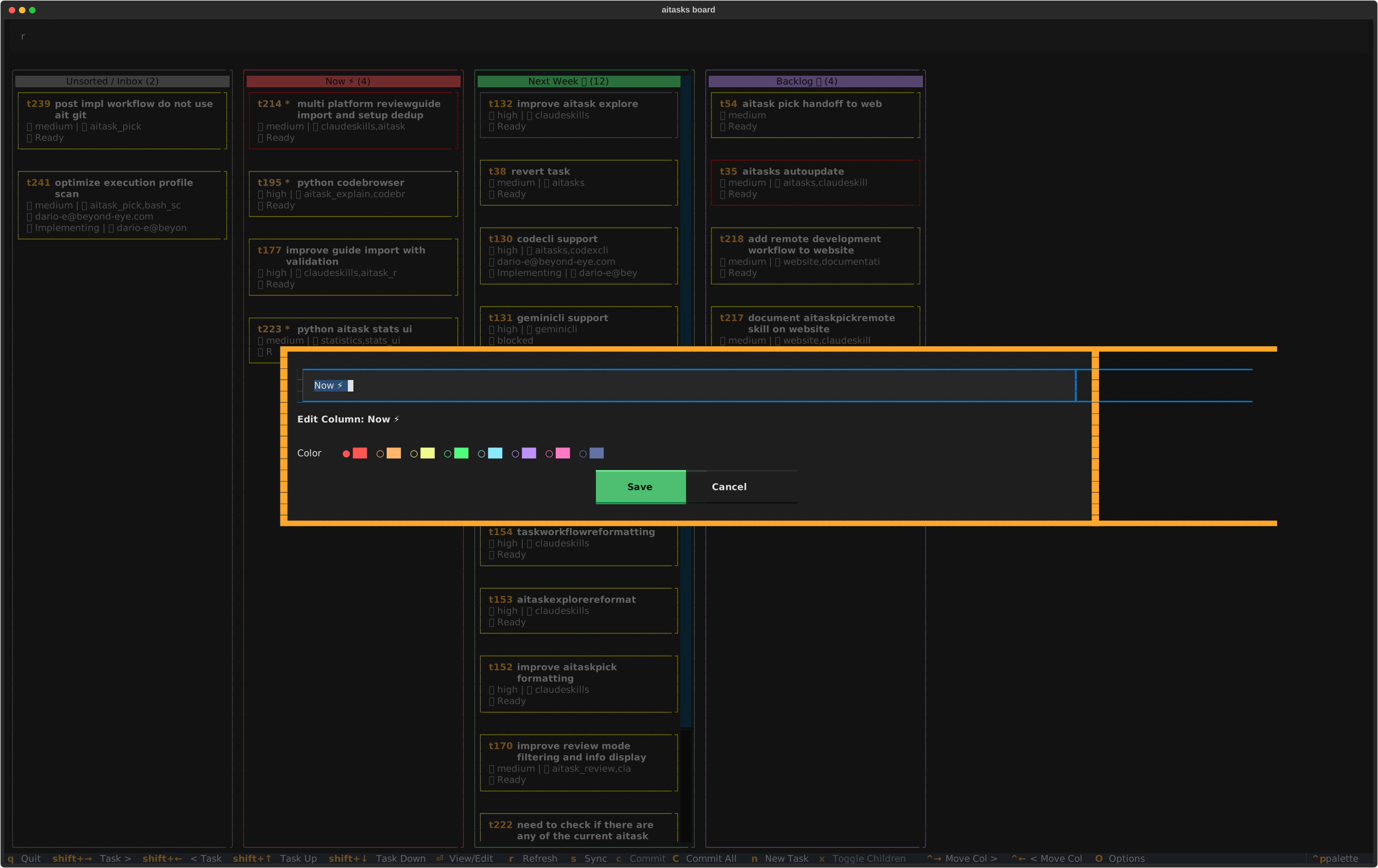
The column edit dialog lets you set a title and choose a color
Adding a new column:
- Open the command palette with Ctrl+Backslash
- Select “Add Column”
- Enter a column title (e.g., “In Review”)
- Click a color swatch to select the column color
- Click “Save”
A unique column ID is auto-generated from the title (lowercased, non-ASCII stripped, spaces replaced with underscores).
Editing an existing column:
- Option A: Click the
✎(pencil) button in the column header to open the edit dialog - Option B: Open the command palette (Ctrl+Backslash), select “Edit Column”, then pick the column to edit
You can change the title and color. The column ID is preserved.
Deleting a column:
- Open the command palette (Ctrl+Backslash)
- Select “Delete Column”
- Pick the column to delete
- Confirm the deletion
Any tasks in the deleted column are moved to the “Unsorted / Inbox” column.
How to Reorder Columns
To change the position of a column on the board:
- Focus any task card in the column you want to move
- Press Ctrl+Right to move the column one position to the right
- Press Ctrl+Left to move it one position to the left
The “Unsorted / Inbox” column cannot be reordered — it always appears on the far left when it contains tasks.
How to Collapse and Expand Columns
Collapsing columns saves screen space by reducing them to a narrow strip showing only the column title and task count. Tasks in collapsed columns are not rendered, which also improves performance for boards with many tasks.
Collapsing a column (mouse):
- Click the
▼arrow button in the column header - The column shrinks to a narrow strip showing the title and task count
Collapsing a column (keyboard):
- Focus any task card in the column you want to collapse
- Press X (Shift+X) to collapse the column
Collapsing a column (command palette):
- Open the command palette with Ctrl+Backslash
- Select “Collapse Column”
- Pick the column to collapse
Expanding a collapsed column (mouse):
- Click the
▶arrow button in the collapsed column header
Expanding a collapsed column (command palette):
- Open the command palette with Ctrl+Backslash
- Select “Expand Column”
- Pick the column to expand
Collapse/expand state is saved in board_config.json and persists across board restarts.
Note: Arrow-key navigation can reach collapsed columns (they show a focusable placeholder). Task movement (Shift+Left/Right) skips collapsed columns. Press X (Shift+X) on a collapsed column’s placeholder to expand it.
How to Edit Task Metadata
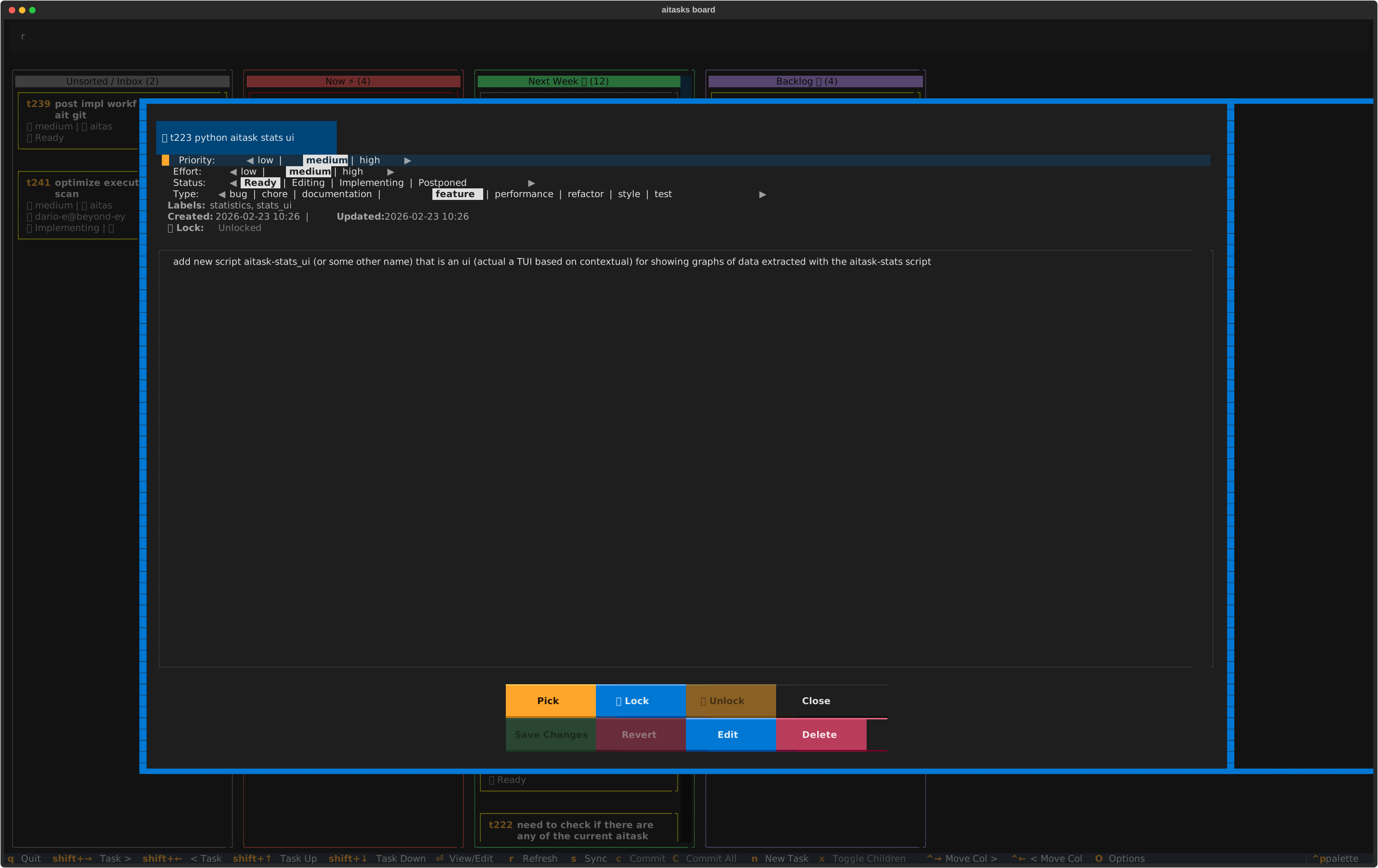
The task detail dialog with cycleable priority, effort, status, and type fields
- Focus a task card and press Enter to open the detail dialog
- Use Up/Down arrows to navigate between fields
- For editable fields (Priority, Effort, Status, Type), press Left/Right arrows to cycle through options:
- Priority: low ↔ medium ↔ high
- Effort: low ↔ medium ↔ high
- Status: Ready → Editing → Implementing → Postponed (cycles)
- Type: Loaded from
aitasks/metadata/task_types.txt(defaults: bug, chore, documentation, feature, performance, refactor, style, test)
- When you’ve made changes, the “Save Changes” button becomes enabled
- Click “Save Changes” or navigate to it and press Enter
The current option is highlighted with bold reverse text. Arrows (◀ ▶) on either side indicate that you can cycle.
Important: The board reloads the task file from disk before saving, then applies only the fields you changed. This prevents overwriting changes made externally (e.g., by another code agent session) to other fields.
Note: Tasks with status “Done” or “Folded” are displayed in read-only mode — the cycle fields are replaced with static text and action buttons are disabled.
How to Search and Filter Tasks
- Press Tab to focus the search box (or click it)
- Type your search query — filtering happens in real-time as you type
- Cards that don’t match are hidden; matching cards remain visible
- Press Escape to return focus to the board (the filter stays active)
- Clear the search box text to show all tasks again
The search is case-insensitive and matches against both the task filename and the entire metadata dictionary. This means you can search by task number (e.g., “t47”), title words, labels, status, assigned person, or any other metadata value.
Note: View mode filters (described below) combine with text search using AND logic. A task must match both the active view mode and the search text to be visible.
How to Filter by View Mode
The board provides three view modes that control which tasks are displayed. The active mode is shown in the View Selector widget at the top-left of the filter area, displayed as a All │ g Git │ i Impl. The active mode is highlighted in bold cyan; inactive modes appear dimmed.
Switching view modes (keyboard):
- Press a to show all tasks (default)
- Press g to show only git-linked tasks
- Press i to show only implementing tasks
Switching view modes (mouse):
Click the desired mode label directly in the View Selector widget.
All view (a):
The default view. Shows every task regardless of metadata. Press a to return to this view from any other mode.
Git view (g):
Shows only tasks that have an issue: or pull_request: field in their frontmatter — i.e., tasks linked to a GitHub issue, GitLab merge request, Bitbucket pull request, or other external tracker URL. This applies to both parent and child tasks.
This mode is useful for focusing on tasks that originate from or are tracked by your git platform. Tasks created by ait pr-import (the PR import workflow) automatically have a pull_request: field and will appear in this view.
Implementing view (i):
Shows only tasks with status “Implementing”, plus contextual related tasks:
- Parent tasks that have at least one implementing child are shown
- All siblings of an implementing child task are shown (so you can see the full subtask list)
- Parents with implementing children are auto-expanded — their child cards appear automatically without pressing x
When you switch away from Implementing view, auto-expanded parents are collapsed back (unless you had manually expanded them before entering the view).
Combining with text search:
View modes combine with the search box using AND logic. For example, if you are in “Git” view and type “auth” in the search box, you see only git-linked tasks that also match “auth”. Clear the search box to show all tasks matching the current view mode.
How to Commit Changes from the Board
When you edit task metadata from the board, the changes are saved to disk but not committed to git. Modified files are indicated by an orange asterisk (*) next to the task number.
Committing a single task:
- Focus the modified task card (the one with *)
- Press c
- A commit dialog appears showing the file to commit and a pre-filled message (e.g., “Update t47: playlists support”)
- Edit the commit message if needed
- Click “Commit”
Committing all modified tasks at once:
- Press C (Shift+c) from anywhere on the board
- The commit dialog shows all modified files and a combined message
- Click “Commit”
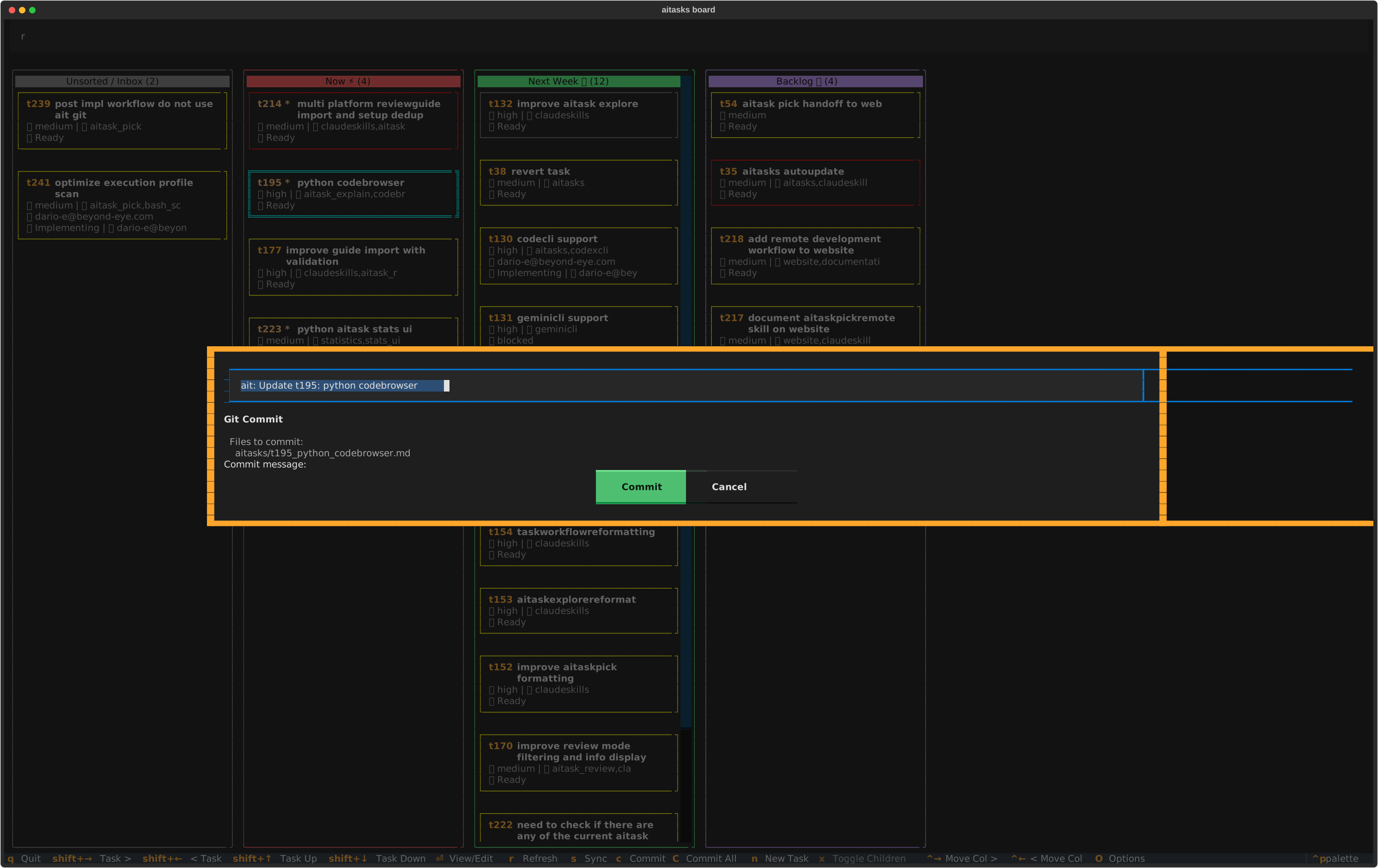
The commit dialog with pre-filled message and list of modified files
Note: The “Commit” and “Commit All” keybindings only appear in the footer when applicable — i.e., when the focused task is modified or when any tasks are modified, respectively.
How to Revert a Task
If you want to discard changes to a task file and restore it to the last committed version:
- Open the task detail dialog (Enter)
- Click the “Revert” button
This runs git checkout -- <filepath> to restore the file. The button is only enabled when the task has uncommitted modifications. It is disabled for tasks with status “Done” or “Folded”.
How to Create a New Task
Press n to create a new task. The board will:
- Detect an available terminal emulator (checking
$TERMINAL, then common emulators likegnome-terminal,konsole,xterm, etc.) - If a terminal is found, open
ait createin a new terminal window - If no terminal is available, suspend the board and run
ait createin the current terminal
After creation, the board refreshes automatically to show the new task.
How to Delete a Task
- Open the task detail dialog (Enter)
- Click the “Delete” button
- A confirmation dialog shows all files that will be deleted:
- The task file itself
- Associated plan file (if it exists in
aiplans/) - All child task files and their plans (for parent tasks)
- Click “Delete” to confirm
Deletion performs git rm on all listed files and creates an automatic commit. If any task had folded tasks, those folded tasks are unfolded (their status is reset to “Ready” and folded_into is cleared).
Delete is disabled for:
- Tasks with status “Done”, “Folded”, or “Implementing”
- Child tasks (must delete the parent instead)
- Read-only views
How to Work with Child Tasks
Parent tasks can have child subtasks stored in aitasks/t<N>/. The board supports expanding and collapsing child tasks inline.
Expanding children:
- Focus a parent task that shows “👶 N children”
- Press x to expand — child task cards appear below the parent, indented with a “↳” connector
Collapsing children:
- Press x again on the parent (or on any of its child cards) to collapse
Navigating children:
- Use Up/Down arrows to move between child cards
- Child cards show the same information as parent cards
- Press Enter on a child card to view its full details
- In the child detail dialog, a “Parent” field links back to the parent task
Restrictions:
- Child tasks cannot be moved between columns or reordered with Shift+arrows
- Child tasks cannot be deleted individually from the board (delete the parent to remove all)
How to Navigate Task Relationships
The task detail dialog shows several relationship fields. Each is focusable — use Up/Down to navigate to them, then press Enter to follow the link:
| Field | Behavior on Enter |
|---|---|
| Depends | Opens the dependency task’s detail dialog. If multiple dependencies exist, shows a picker list. If a dependency is not found (archived), offers to remove the stale reference. |
| Children | Opens the child task’s detail dialog. If multiple children, shows a picker list. |
| Parent | Opens the parent task’s detail dialog. |
| Folded Tasks | Opens the folded task’s detail dialog in read-only mode. If multiple, shows a picker list. |
| Folded Into | Opens the target task that this task was folded into. |
| Issue | Opens the issue URL in your default web browser. |
| Pull Request | Opens the pull request URL in your default web browser. |
How to Pick a Task for Implementation
From the task detail dialog:
- Click the “Pick” button
- The board launches
ait codeagent invoke task-pick <task_number>in a terminal emulator (or suspends and runs it in the current terminal if no emulator is found)
The code agent wrapper resolves which agent and model to use for the task-pick operation based on your configuration, so the board respects whatever agent you have configured (Claude Code, Gemini CLI, Codex, or OpenCode). This starts the full aitask-pick workflow: assignment, planning, implementation, and archival. The board refreshes after the pick session completes (when running in suspend mode).
The “Pick” button is disabled for tasks with status “Done” or “Folded”.
How to Lock and Unlock Tasks
Task locks are a lightweight reservation mechanism that signals to other users and AI agents that you intend to work on a task. Locks do not change task metadata – they are stored separately on the aitask-locks branch.
Note: You do not need to manually lock a task before using
/aitask-pickor/aitask-pickrem. These skills handle locking automatically as part of their workflow – they acquire the lock, set the task status to Implementing, and updateassigned_toall in one step. Board locks are a manual pre-reservation tool for specific use cases. See theait lockcommand reference for when manual locking is useful.
Locking a task:
- Open the task detail dialog (Enter)
- Click the “🔒 Lock” button (in the workflow button row)
- A dialog appears asking for your email – it defaults to the auto-detected email from
userconfig.yamloremails.txt - Confirm the email and click “Lock”
- A notification confirms the lock; the detail dialog dismisses and the board refreshes
The “🔒 Lock” button is disabled when the task is already locked or when the task has status “Done” or “Folded”.
Unlocking a task:
- Open the task detail dialog (Enter)
- Click the “🔓 Unlock” button
- If the lock belongs to you, the task is unlocked immediately
- If the lock belongs to a different user, a confirmation dialog appears showing the lock details (who locked it, from which machine, and when) and asks whether to force unlock
- A notification confirms the unlock; the detail dialog dismisses and the board refreshes
Identifying locked tasks on the board:
Locked tasks display a lock indicator line on their card: 🔒 user@example.com. This is visible without opening the detail dialog.
In the task detail dialog, the lock status is shown as a read-only field:
- Locked:
🔒 Locked: user@example.com on hostname since 2026-02-24 14:30 - Unlocked:
🔓 Lock: Unlocked(dimmed)
Locks older than 24 hours display a “(may be stale)” warning in the detail view.
Note: The board refreshes its lock data on every board refresh (manual r, auto-refresh, or after lock/unlock operations). Locks are fetched from the remote
aitask-locksbranch, so they reflect the latest state across all machines and agents.
For the underlying mechanism and CLI usage, see the ait lock command reference.
How to Pre-Lock a Task for Claude Web Execution
When using the /aitask-pickweb skill on Claude Code Web, the Web environment cannot acquire locks (it lacks push access to the aitask-locks branch). Pre-locking from the board prevents another agent from picking the same task concurrently.
- Find the task you plan to send to Claude Web
- Open its detail dialog (Enter)
- Click “🔒 Lock” and confirm your email
- Start the
/aitask-pickwebsession on Claude Code Web - After the Web session completes and you merge the results locally, unlock the task from the board (or let
/aitask-web-mergehandle it)
Note: Pre-locking is recommended but not required.
/aitask-pickwebwill work without a lock, but there is no protection against another agent picking the same task. See theait lockpre-locking guide for the full workflow diagram.
How to Use Locks for Multi-Agent Coordination
When multiple users or AI agents are working on tasks simultaneously, locks prevent duplicate work. Each lock is visible to all participants through the board and the ait lock --list command.
Note:
/aitask-pickand/aitask-pickremacquire locks automatically – you only need manual locks when reserving tasks in advance or coordinating without the pick workflow.
Reserving a task before starting work:
- Open the task on the board and click “🔒 Lock”
- Other users and agents will see the lock indicator on the card and in the task detail dialog
- When you are ready, pick the task –
/aitask-pickdetects the existing lock and refreshes it - After completion, the lock is released as part of the archival process
Checking who is working on what:
- Scan the board for 🔒 indicators on task cards
- Use the search box to filter – lock owner emails appear in the card, so searching for a name or email shows their locked tasks
- Open any locked task’s detail dialog to see the full lock info (email, hostname, timestamp, staleness)
Caution: Locks are advisory – they do not prevent force-unlocking. If a lock appears stale (older than 24 hours, marked with “(may be stale)”), coordinate with the lock owner before force-unlocking.
How to Use the External Editor
To edit a task file in your preferred text editor:
- Open the task detail dialog (Enter)
- Click the “Edit” button
- The board suspends and opens the file in your
$EDITOR(defaults tonanoon Linux/macOS,notepadon Windows) - Make your changes, save, and exit the editor
- The board resumes and reloads the task data
The “Edit” button is disabled for tasks with status “Done” or “Folded”.
How to Open Linked Issues
If a task has an issue field in its frontmatter (a URL to a GitHub, GitLab, or Bitbucket issue):
- Open the task detail dialog (Enter)
- Navigate to the “Issue” field (it shows the URL with “(Enter to open)” hint)
- Press Enter to open the URL in your default web browser
How to Configure Auto-Refresh
The board can periodically reload task files from disk so that changes made externally (e.g., by an AI agent or on another machine) appear automatically without pressing r.
Opening the settings dialog:
- Press O from the board, or
- Open the command palette (Ctrl+Backslash) and select “Options”
Changing the auto-refresh interval:
- In the settings dialog, use Left/Right arrows on the “Auto-refresh (min)” field to cycle through the available intervals: 0, 1, 2, 5, 10, 15, 30 minutes
- Select 0 to disable auto-refresh entirely
- Click “Save” to apply
Changes take effect immediately — the timer is restarted (or stopped) as soon as you save. The setting is persisted to aitasks/metadata/board_config.json, so it survives restarts.
The default interval is 5 minutes.
Note: Auto-refresh is skipped when a modal dialog is open (e.g., task detail, column editor). The refresh will occur at the next interval after the modal is closed. You can always press r to refresh manually at any time.
How to Sync with Remote
When working across multiple machines, task files can get out of sync. The board integrates with ait sync to push local changes and pull remote changes automatically.
Manual sync:
- Press s from the board, or open the command palette (Ctrl+Backslash) and select “Sync with Remote”
- A notification appears showing the result: “Synced (pushed N, pulled M)”, “Pushed N commits”, “Pulled M commits”, “Already up-to-date”, or an error message
Enabling auto-sync:
- Press O to open the options/settings dialog
- Toggle “Sync on refresh” to yes
- Click “Save”
When enabled, the board runs ait sync silently on each auto-refresh interval instead of just reloading from disk. The subtitle bar shows “+ sync” to indicate auto-sync is active.
Note: Auto-sync requires the data branch mode (
.aitask-dataworktree). If task data lives on the main branch (legacy mode), the sync option is not available.
Handling conflicts:
If the sync detects merge conflicts (e.g., the same task was edited on two machines), a conflict dialog appears listing the affected files. You have two options:
- Resolve Interactively — Opens
ait syncin a terminal where you can edit each conflicted file in$EDITORand complete the rebase - Dismiss — Closes the dialog without resolving; the conflicts remain for the next sync attempt
No network:
If the remote is unreachable (timeout after 10 seconds), the board shows a warning notification and continues working with local data. No partial state is left behind.