How-To Guides
Maturity:
Depth:
How to Organize Tasks into Columns
Moving a task to a different column:
- Focus the task card using arrow keys
- Press Shift+Right to move it to the next column, or Shift+Left to move it to the previous column
The task is appended to the end of the target column. Column order follows the configured order, with “Unsorted / Inbox” on the far left. Collapsed columns are skipped when moving tasks.
Reordering tasks within a column:
- Focus the task card
- Press Shift+Up to swap it with the task above, or Shift+Down to swap it with the task below
- Press Ctrl+Up to jump the task to the top of the column, or Ctrl+Down to jump it to the bottom
Task positions are stored in the boardidx field of each task file’s frontmatter. Moving a task rewrites only that task’s file — the board picks an index in the gap between its new neighbours instead of renumbering the column, so moving a card between columns leaves every other task untouched. Indices are therefore widely spaced rather than consecutive, and moving a task to the top of a column can give it a negative index. Only their order matters. If repeated moves into the same position exhaust the gap, the board re-spaces that one column automatically.
Note: Child tasks cannot be moved between columns or reordered — only parent tasks can be repositioned.
How to Group Tasks in a Column
A group is a named cluster of tasks inside a single column — a way to keep related work together without giving it a column of its own.
Assigning membership:
Group membership lives in the task file, in the boardgroup field:
ait update --batch 47 --boardgroup perf_work    # add t47 to the "perf work" group
ait update --batch 47 --boardgroup ""           # take it back out
The slug is the group’s identity — there is no separate group registry — so a slug outside [a-z0-9_]+ is rejected rather than cleaned up. Silently lowercasing Perf_Work or turning perf-work into perf_work would merge two distinct groups into one, and merging groups is destructive enough to require you to mean it.
Reading a group:
- A group with two or more members draws a header row above them:
▾ perf work (3). The title is the slug with underscores as spaces. - A group with a single member draws no header — it renders as a plain card. It keeps its slug, so a member moving away never silently dissolves the group.
- See Group Header Anatomy for the full header line.
Collapsing and expanding:
- Focus the group header with the arrow keys
- Press x
A collapsed group renders as its header alone, with the members hidden. Arrow keys move over units rather than individual cards, so a collapsed group is a single stop no matter how many tasks it holds.
Note: x acts on whatever is focused — on a task card it toggles child tasks, on a group header it toggles the group.
Groups and filters:
When a filter or search is active, the header gains a match count: ▾ perf work (3) · 2 match. That is how many members would show if the group were expanded — so a collapsed group tells you it still holds matches instead of looking empty.
What is remembered:
Which groups you have collapsed is stored in aitasks/metadata/board_config.local.json, your own local layer — collapsing a group changes your view only, never a teammate’s. Collapse state follows a column through renames, merges and deletions, and entries naming a column or group that no longer exists are dropped when the board loads.
How to Mark Tasks
Marking selects a set of tasks for a bulk operation.
- Focus a parent task card
- Press Space to mark it, and Space again to unmark
Every parent card carries a mark glyph at the start of its title row — ✓ when marked, □ when not — so the column is always present and rows never shift as you toggle. Marked cards are drawn in bold Dracula yellow (#F1FA8C).
Only parent cards can be marked. Pressing Space on a child says so rather than doing nothing silently:
Child tasks move with their parent — mark the parent instead.
Marking is unavailable in the In-Flight, By-Topic and By-Trail views, which render derived, non-reorderable lanes — the key is hidden from the footer there.
Marks survive filtering. Typing in the search box or toggling the Git (g) / Type (t) add-on filters leaves your marks intact, so a marked card may be hidden from view right now. That is deliberate — it is why a bulk move always shows you what it is about to act on. Switching the base view (a / l / f / i / y / z) does clear the marks.
If a marked task leaves the board entirely — archived by another session, say — the next refresh drops it from the selection and tells you, rather than shrinking your selection invisibly:
Unmarked 2 task(s) no longer on the board: t51_foo.md, t63_bar.md
To unmark everything at once, open the command palette (Ctrl+Backslash) and select “Clear Selection”.
How to Move Several Tasks at Once
- Mark the tasks you want to move (Space on each)
- Press m
- Review the list of tasks that will move, then confirm
- Pick the destination column
With nothing marked, m acts on the focused card alone and skips the review — the target is unambiguous and visible by construction. With a column placeholder focused instead of a card, m scopes to every task in that column, including ones the active filter is hiding.
The review step always runs when tasks are marked, because marks survive a filter pass and a marked card may be off-screen. The dialog lists each task in rendered board order as [Backlog] t47 playlists support — source column, task number, title. Every row starts ticked; press Space to untick one, Enter to confirm, Esc to cancel.
The destination list omits collapsed columns, and — when the whole selection already sits in one column — that column too. A column only some of the selection occupies stays on the list, since consolidating there is a real move. If nothing is left to choose:
Nowhere to move to — every other column is collapsed, and the selection already sits where it is.
Moved tasks are appended to the bottom of the destination column in the same order you reviewed them, and focus follows the last one. Child cards refuse as they do for marking:
Child tasks move with their parent — move the parent instead.
Note: The move is all-or-nothing. If any task in the selection has left the board since you marked it, nothing is written — press r to refresh, then retry.
How to Customize Columns
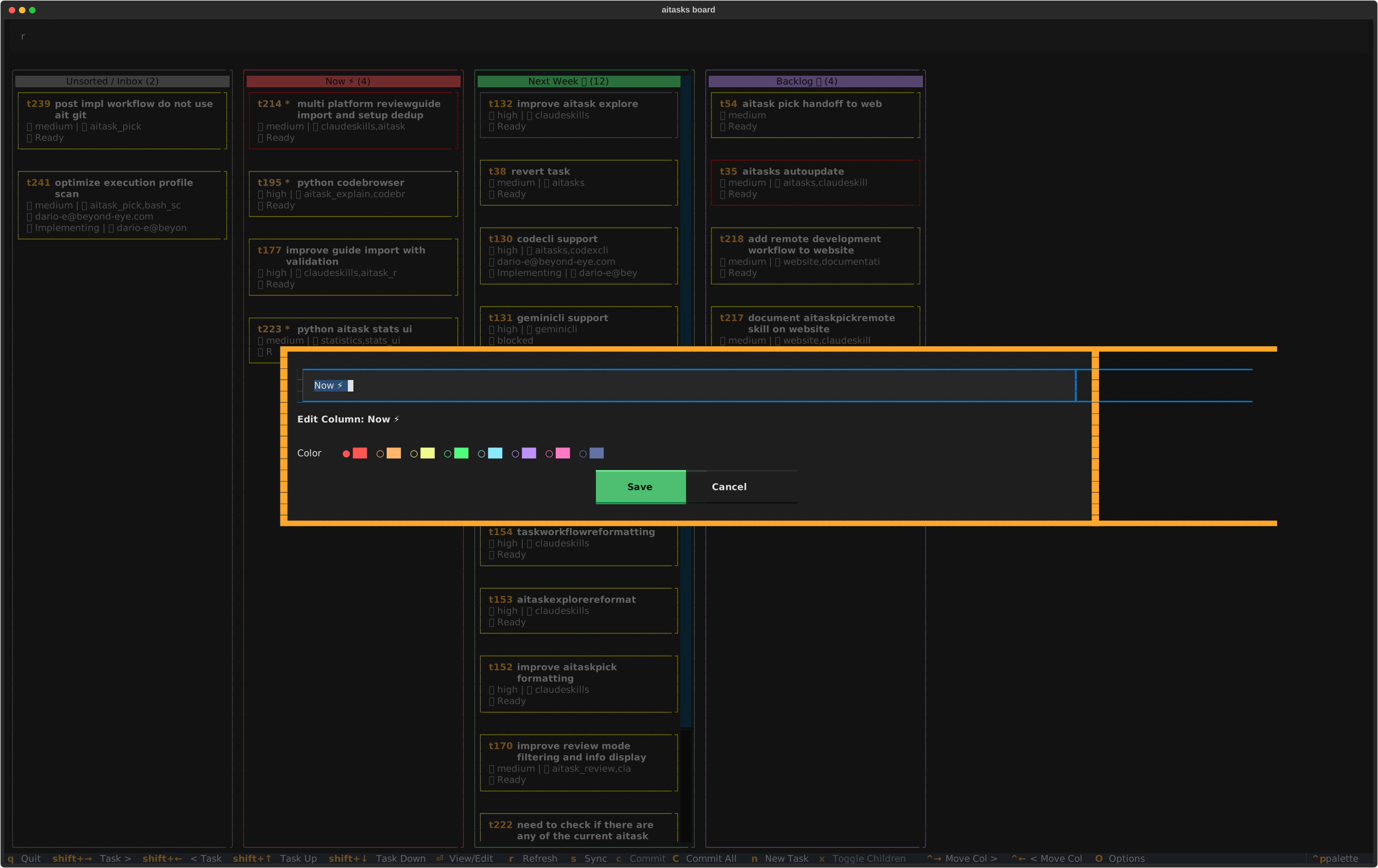
The column edit dialog lets you set a title and choose a color
Press e to open the column management dialog — one place for add, edit, delete, reorder and merge. It lists every column with its position, color, ID and task count, and closes with Esc. The same operations are also reachable by mouse and from the command palette (Ctrl+Backslash); collapse and expand stay on the board itself.
| Operation | Keyboard | Mouse | Command palette |
|---|---|---|---|
| Add column | e → Add → enter title, pick color, Save | — | “Add Column” → enter title, pick color, Save |
| Edit column | e → focus the column → Enter (or Edit) | Click ✎ in column header | “Edit Column” → pick column |
| Delete column | e → focus the column → Delete → confirm | — | “Delete Column” → pick column → confirm (tasks move to Unsorted / Inbox) |
| Reorder column | e → focus the column → Shift+Up / Shift+Down, or focus any card in the column → Ctrl+Right / Ctrl+Left | — | — |
| Merge columns | e → Merge → pick the source columns → pick the destination → confirm | — | “Merge Columns” |
| Collapse column | Focus any card in the column → X (Shift+X) | Click ▼ arrow in column header | “Collapse Column” → pick column |
| Expand collapsed column | Focus the placeholder → X (Shift+X) | Click ▶ arrow in collapsed header | “Expand Column” → pick column |
| Move marked tasks to a column | Mark with Space → m → review → pick column | — | “Move Tasks to Column” (and “Clear Selection” to unmark everything) |
Notes:
- Column IDs are auto-generated from the title (lowercased, non-ASCII stripped, spaces replaced with underscores). Editing a column preserves the ID.
- The “Unsorted / Inbox” column always appears on the far left when it contains tasks — it cannot be reordered.
- Collapse/expand state is saved in
board_config.jsonand persists across restarts. Tasks in collapsed columns are not rendered (improves performance on large boards). - Arrow-key navigation can reach collapsed columns (they show a focusable placeholder). Task movement (Shift+Left/Right) skips collapsed columns.
- Column management applies to the columns you configure, so it is unavailable in the In-Flight, By-Topic and By-Trail views — those render lanes derived from task metadata rather than board columns.
Merging columns. A merge moves every task out of one or more source columns into a destination column, then removes the sources. You need at least two columns to choose from. The tasks land at the bottom of the destination with fresh indices — they do not keep their old positions — while their relative order within each source is preserved, and the sources are processed in board order. The removed columns are also dropped from the saved collapse state. “Unsorted / Inbox” can be the destination, and can be a source when it holds tasks.
Note: A merge is not transactional. If it fails part-way, the source column stays on the board holding whatever did not move, and re-running the merge finishes the job. Two messages are exceptions worth reading: if a task file cannot be read the sources are kept deliberately (fix the named files, then re-run), and if only the collapsed state failed to save, the merge itself is already durable — that repairs itself on the next launch, so do not re-run it.
How to Edit Task Metadata
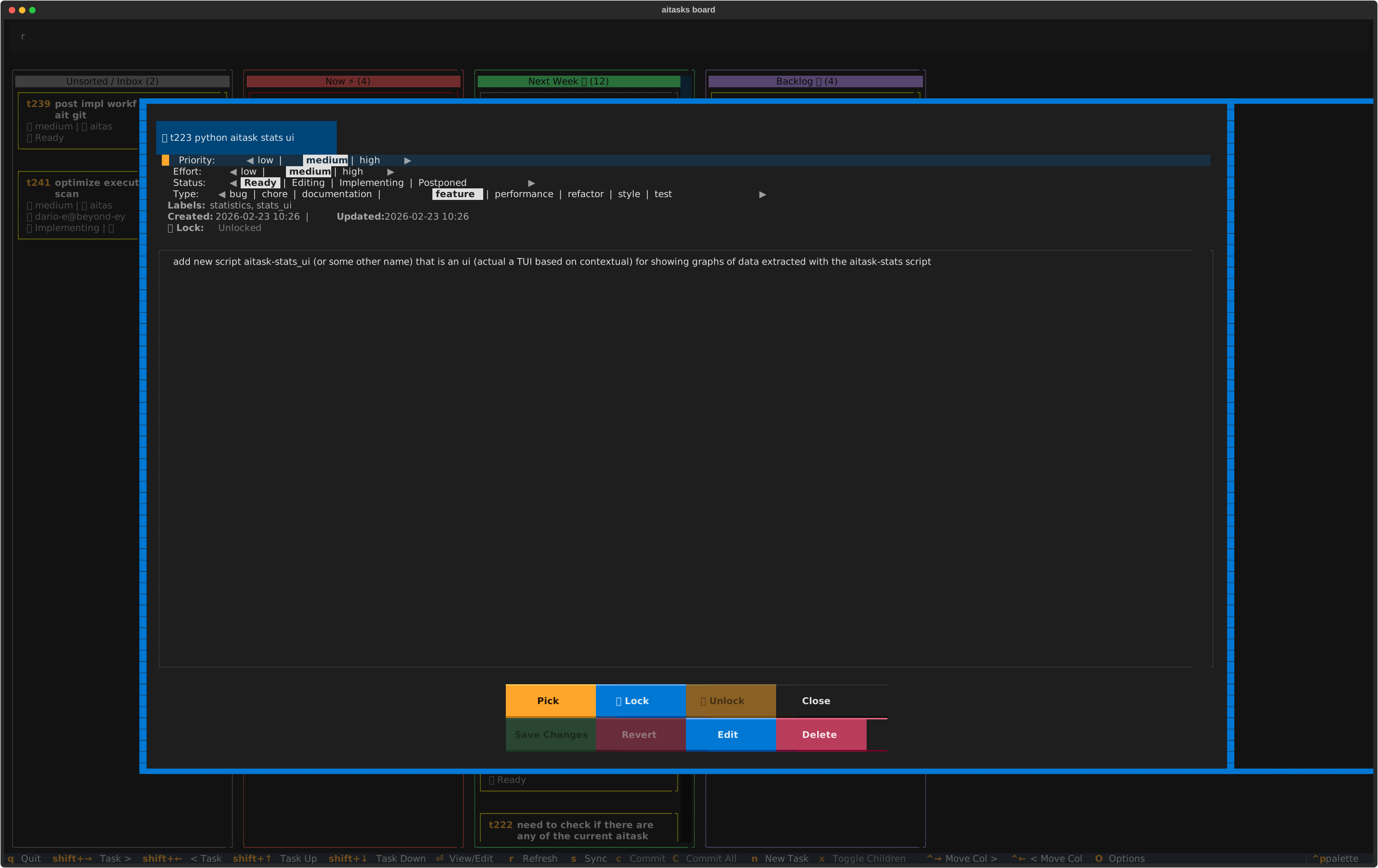
The task detail dialog with cycleable priority, effort, status, and type fields
- Focus a task card and press Enter to open the detail dialog
- Use Up/Down arrows to navigate between fields
- For editable fields (Priority, Effort, Status, Type), press Left/Right arrows to cycle through options:
- Priority: low ↔ medium ↔ high
- Effort: low ↔ medium ↔ high
- Status: Ready → Editing → Implementing → Postponed (cycles)
- Type: Loaded from
aitasks/metadata/task_types.txt(defaults: bug, chore, documentation, enhancement, feature, manual_verification, performance, refactor, style, test)
- When you’ve made changes, the “Save Changes” button becomes enabled
- Click “Save Changes” or navigate to it and press Enter
The current option is highlighted with bold reverse text. Arrows (◀ ▶) on either side indicate that you can cycle.
Important: The board reloads the task file from disk before saving, then applies only the fields you changed. This prevents overwriting changes made externally (e.g., by another code agent session) to other fields.
Note: Tasks with status “Done” or “Folded” are displayed in read-only mode — the cycle fields are replaced with static text and action buttons are disabled.
How to Search and Filter Tasks
- Press Tab to focus the search box (or click it)
- Type your search query — filtering happens in real-time as you type
- Cards that don’t match are hidden; matching cards remain visible
- Press Escape to return focus to the board (the filter stays active)
- Clear the search box text to show all tasks again
The search is case-insensitive and matches against both the task filename and the entire metadata dictionary. This means you can search by task number (e.g., “t47”), title words, labels, status, assigned person, or any other metadata value.
Parent cards follow their children. A parent card stays visible whenever one of its child tasks matches the active filter, even though the parent’s own filename and metadata do not. Searching for text that only a child carries therefore shows you the parent, so you can expand it and reach the child — and an expanded child row is never left dangling under a hidden parent. Only the parent is pulled in; sibling children that do not match stay hidden.
Note: View mode filters (described below) combine with text search using AND logic. A task must match both the active view mode and the search text to be visible.
How to Filter by View Mode
The View Selector at the top-left combines one base view with optional add-on filters. The active base and add-ons are highlighted.
Base views:
- Press a for All tasks.
- Press l for Locked tasks: tasks currently implementing or locked, with parent/sibling context for busy child tasks.
- Press f for Free tasks: tasks not currently implementing or locked.
- Press i for In-Flight tasks grouped by next action.
- Press y for By-Topic swimlanes, one lane per topic.
- Press z for By-Trail: the members of one implementation trail, laid out as waves.
Add-on filters:
- Press g outside In-Flight view to restrict the current base view to tasks with
issue:orpull_request:metadata. - Press t to restrict the current base view to selected issue types.
In-Flight view (i):
Shows work already under way — tasks with status: Implementing, and Ready tasks carrying an approved plan whose implementation was deliberately deferred — in four lanes by what happens next:
- Planned — an approved plan is waiting; implementation has not started.
- Needs your action — tasks waiting for a human gate, a failed gate decision, or post-implementation/archive follow-up.
- Agent can continue — tasks that can be resumed by an agent, including implementing tasks without a gate ledger.
- Blocked — tasks still blocked by unresolved dependencies.
Each card also carries a workflow-phase chip, which is a separate question from the lane. See In-Flight Lanes and Workflow Phases for the two-axis model, the phase vocabulary, and how gate progress is counted.
With an In-Flight row focused, p launches the normal pick/resume flow, g launches direct resume, and s / f sign off or fail a pending human gate. A gate whose sign-off has gone stale — it was approved, but the code has changed since — counts as pending here and can be re-signed the same way. If more than one human gate is pending, the board asks which gate to update.
On a Planned row only p applies: g, s and f are refused with an explanation, because resuming would skip the planning checkpoint and signing off would approve a review of code that does not exist yet.
By-Trail view (z):
Shows the members of a single implementation trail — a
stored, wave-structured plan for the order a group of tasks should be done in.
Each wave is a column; each card carries its classification, confidence, and
status, and a short pane underneath carries the trail’s summary. To read trails
without the board, the same view runs on its own as
ait trails (j then i from here).
- Press z to enter the view, then s to pick which trail to show. If you
have no trails yet, create one first: from a kanban or By-Topic view, focus a
task and press T (it is unavailable in In-Flight and in By-Trail itself),
or run
/aitask-trailin your coding agent. - Read the summary pane under the columns — it is the trail’s prose answer to
“what should land next, and why”. Press v to open it in a scrollable
dialog if it is longer than the pane. The subtitle states the trail’s
authoring depth (
· liteor· deep) when the trail records one. - Press Enter on a card to read the reasoning for that member. The detail screen leads with that card’s own material and withholds the trail-wide sections that are not about it; press a to reveal the whole document.
- Keep it current with the refresh keys, cheapest first: r redraws from the
task files on disk (instant), d re-checks the trail against live task
state, S runs a remote sync first, and R hands the trail to an agent
to be re-authored. R re-authors at the cheaper
litedepth; on a trail authored atdeepit says what that discards and asks first, and the previous version stays retrievable. Run the trail skill with--deepyourself when you want the full analysis back. - Move the work onto the board when you are ready to act on it: m moves the focused entry’s task to a column, M moves the whole focused wave. M reviews the list first and preserves wave order, so the wave lands in the sequence the trail recommends — which is what makes a work report drafted from that column read as a plan. Read-only members (archived, cross-repo, missing) cannot move and are named rather than silently dropped.
- Follow the work into other projects. A member blocked by a task in another
project shows
🌐 blocked (cross-repo), and a cross-repo ghost shows its live status from its own project. Press L to list the trails in other projects that are linked to this one, and Enter on one to switch to that project’s session with the trail open — see Cross-repo dependencies in implementation trails.
An amber ⚠ line on a card means that member has drifted — its live state no
longer matches what the trail recorded (its status changed, it was archived, its
dependencies moved). Drift does not break the view; it tells you the sequencing
advice may be stale, which R fixes.
Combining with text search:
View modes combine with the search box using AND logic. For example, if you are in Locked view and type “auth”, you see only locked tasks that also match “auth”. Clear the search box to show all tasks matching the current view mode.
The parent-follows-child rule described under How to Search and Filter Tasks applies to this combined result, not to the search alone. A parent is shown whenever a child passes everything currently active — base view, add-on toggles and search together. One visible consequence: in Free view a parent that is itself in flight still appears above its free children, because those children are what the view is showing you.
How to Commit Changes from the Board
When you edit task metadata from the board, the changes are saved to disk but not committed to git. Modified files are indicated by an orange asterisk (*) next to the task number.
Committing a single task:
- Focus the modified task card (the one with *)
- Press c
- A commit dialog appears showing the file to commit and a pre-filled message (e.g., “Update t47: playlists support”)
- Edit the commit message if needed
- Click “Commit”
Committing all modified tasks at once:
- Press C (Shift+c) from anywhere on the board
- The commit dialog shows all modified files and a combined message
- Click “Commit”
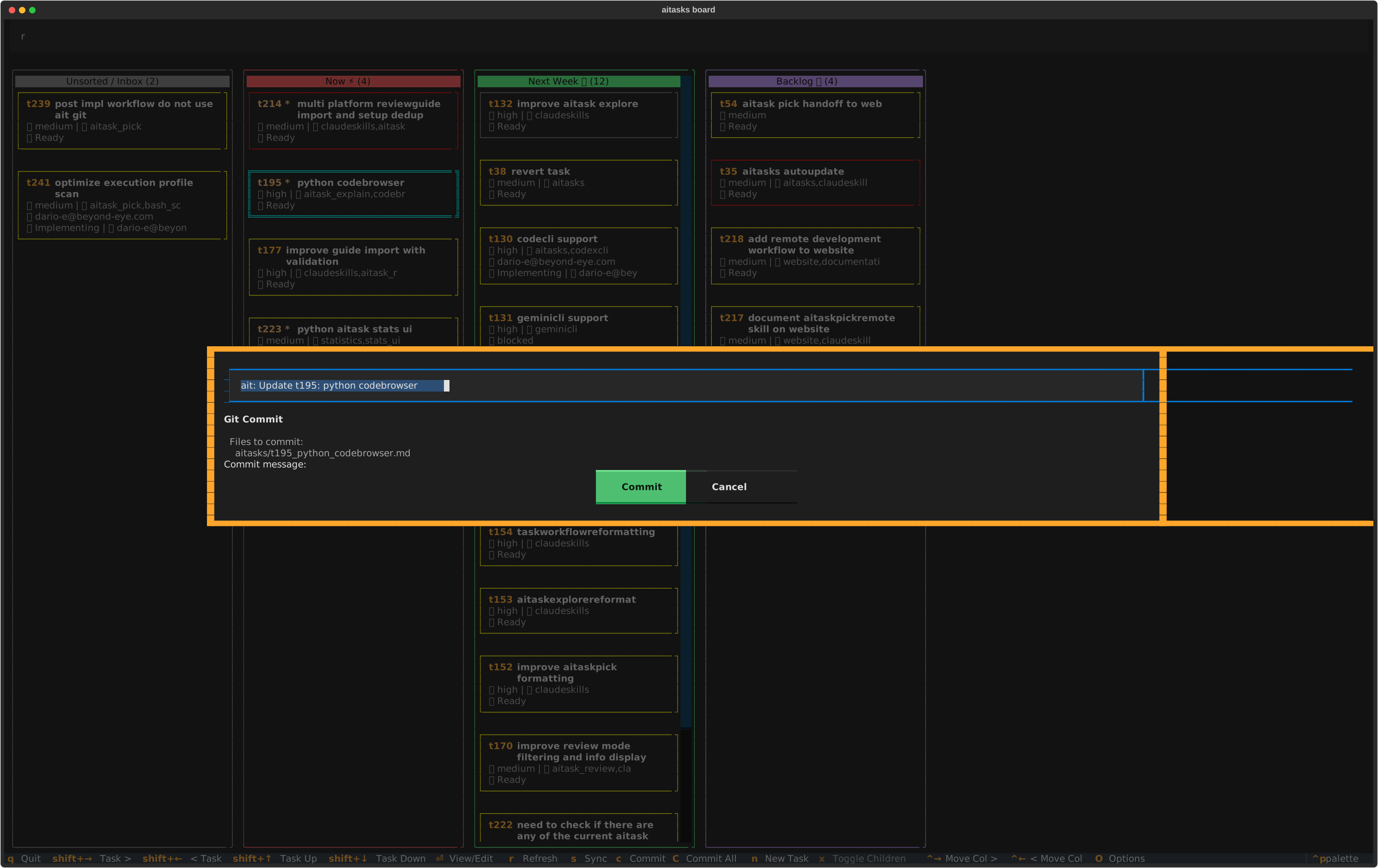
The commit dialog with pre-filled message and list of modified files
Note: The “Commit” and “Commit All” keybindings only appear in the footer when applicable — i.e., when the focused task is modified or when any tasks are modified, respectively.
How to Revert a Task
If you want to discard changes to a task file and restore it to the last committed version:
- Open the task detail dialog (Enter)
- Click the “Revert” button
This runs git checkout -- <filepath> to restore the file. The button is only enabled when the task has uncommitted modifications. It is disabled for tasks with status “Done” or “Folded”.
How to Create a New Task
Press n to create a new task. The board will:
- Detect an available terminal emulator (checking
$TERMINAL, then common emulators likegnome-terminal,konsole,xterm, etc.) - If a terminal is found, open
ait createin a new terminal window - If no terminal is available, suspend the board and run
ait createin the current terminal
After creation, the board refreshes automatically to show the new task.
How to Delete a Task
- Open the task detail dialog (Enter)
- Click the “Delete” button
- A confirmation dialog shows all files that will be deleted:
- The task file itself
- Associated plan file (if it exists in
aiplans/) - All child task files and their plans (for parent tasks)
- Click “Delete” to confirm
Deletion performs git rm on all listed files and creates an automatic commit. If any task had folded tasks, those folded tasks are unfolded (their status is reset to “Ready” and folded_into is cleared).
Delete is disabled for:
- Tasks with status “Done”, “Folded”, or “Implementing”
- Child tasks (must delete the parent instead)
- Read-only views
How to Work with Child Tasks
Parent tasks can have child subtasks stored in aitasks/t<N>/. The board supports expanding and collapsing child tasks inline.
Expanding children:
- Focus a parent task that shows “👶 N children”
- Press x to expand — child task cards appear below the parent, indented with a “↳” connector
Collapsing children:
- Press x again on the parent (or on any of its child cards) to collapse
Navigating children:
- Use Up/Down arrows to move between child cards
- Child cards show the same information as parent cards
- Press Enter on a child card to view its full details
- In the child detail dialog, a “Parent” field links back to the parent task
Restrictions:
- Child tasks cannot be moved between columns or reordered with Shift+arrows
- Child tasks cannot be deleted individually from the board (delete the parent to remove all)
How to Navigate Task Relationships
The task detail dialog shows several relationship fields. Each is focusable — use Up/Down to navigate to them, then press Enter to follow the link:
| Field | Behavior on Enter |
|---|---|
| Depends | Opens the dependency task’s detail dialog. If multiple dependencies exist, shows a picker list. If a dependency is not found (archived), offers to remove the stale reference. |
| Children | Opens the child task’s detail dialog. If multiple children, shows a picker list. |
| Parent | Opens the parent task’s detail dialog. |
| Folded Tasks | Opens the folded task’s detail dialog in read-only mode. If multiple, shows a picker list. |
| Folded Into | Opens the target task that this task was folded into. |
| File Refs | Opens ait codebrowser focused on the referenced file and line range. With 0 entries, no-op. With 1 entry, opens directly. With 2+ entries, a picker appears first. Requires a running tmux session to reuse an existing codebrowser window. |
| Issue | Opens the issue URL in your default web browser. |
| Pull Request | Opens the pull request URL in your default web browser. |
How to Pick a Task for Implementation
From the task detail dialog:
- Click the “Pick” button
- The board launches
ait codeagent invoke task-pick <task_number>in a terminal emulator (or suspends and runs it in the current terminal if no emulator is found)
The code agent wrapper resolves which agent and model to use for the task-pick operation based on your configuration, so the board respects whatever agent you have configured (Claude Code, Codex, OpenCode, or any other supported coding agent). This starts the full aitask-pick workflow: assignment, planning, implementation, and archival. The board refreshes after the pick session completes (when running in suspend mode).
The “Pick” button is disabled for tasks with status “Done” or “Folded”.
How to Generate a Work Report
A work report summarizes what you are working on for someone who does not read the board — built from the columns you select, in the order the board already holds them.
Generating the report:
- Focus any card in the column you want to report on, or the column’s placeholder if it is collapsed or empty
- Press W
- In the column picker, check every column the report should cover — the focused column is already checked. Press Space to toggle, Enter to confirm, Esc to cancel
- In the task picker, all tasks start checked. Deselect anything to exclude from the report, then press Enter
- The agent command dialog opens with the reviewed selection filled in. Launch it, or adjust the agent, model, or profile first
The task picker always lists the full contents of each selected column, even when a search or view filter is currently narrowing the board — so a report never silently omits work just because it is filtered out of view. Ordering follows each column’s board order and is preserved in the report.
The W key is column-scoped: it appears in the persistent kanban views whenever a focused card or column placeholder identifies a column, and is hidden in the In-Flight, By-Topic and By-Trail views, which show derived lanes rather than columns. If you confirm a selection with no columns or no tasks in it, the board shows a notification instead of launching.
Choosing the agent: the work-report operation resolves through the code agent wrapper. Change its default by editing defaults."work-report" in aitasks/metadata/codeagent_config.json (shared with the project) or codeagent_config.local.json (your personal override, which takes precedence), or from the Agent Defaults tab in ait settings. The launch dialog also lets you override the agent and model for a single run.
Note: To rebind W itself, press ? on the board to open the shortcut editor, or use the Shortcuts tab in
ait settings. Overrides are saved toaitasks/metadata/userconfig.yamlundershortcuts.board.work_report— not toboard_config.json, which holds only column definitions.
For the full workflow, including how to read the completion projection, see Work Report.
How to Lock and Unlock Tasks
Task locks are a lightweight reservation mechanism that signals to other users and AI agents that you intend to work on a task. Locks do not change task metadata — they are stored on the aitask-locks branch and fetched on every board refresh (manual r, auto-refresh, or after lock/unlock operations).
Note: You do not need to manually lock a task before using
/aitask-pickor/aitask-pickrem. These skills acquire the lock, set status to Implementing, and updateassigned_toin one step. Board locks are a manual pre-reservation tool — useful for reserving a task ahead of time (including before sending it to/aitask-pickweb, which cannot acquire locks from Claude Code Web), or coordinating without the pick workflow. See theait lockcommand reference for the full decision guide.
Locking: open the task detail dialog (Enter) → click “🔒 Lock” → confirm the email (defaults to userconfig.yaml or emails.txt) → Save. A notification confirms the lock. The button is disabled when the task is already locked or has status Done / Folded.
Unlocking: open the task detail dialog → click “🔓 Unlock”. If the lock belongs to you, it is released immediately. If it belongs to someone else, a confirmation dialog shows the lock details (owner, hostname, timestamp, staleness) and asks whether to force-unlock.
Identifying locks: task cards display a 🔒 user@example.com line when locked. In the detail dialog, the lock field shows 🔒 Locked: user@example.com on hostname since <timestamp> (locks older than 24 hours are annotated “(may be stale)”).
Multi-agent coordination: ait lock --list shows all locks across the team; the board’s search box filters by lock-owner email (owner strings are searchable along with other card metadata). Locks are advisory — they do not prevent force-unlocking, so coordinate with the owner before overriding a stale lock.
For the underlying mechanism, CLI usage, and the Claude Code Web pre-locking workflow, see the ait lock command reference.
Caution: Locks are advisory – they do not prevent force-unlocking. If a lock appears stale (older than 24 hours, marked with “(may be stale)”), coordinate with the lock owner before force-unlocking.
How to Use the External Editor
To edit a task file in your preferred text editor:
- Open the task detail dialog (Enter)
- Click the “Edit” button
- The board suspends and opens the file in your
$EDITOR(defaults tonanoon Linux/macOS,notepadon Windows) - Make your changes, save, and exit the editor
- The board resumes and reloads the task data
The “Edit” button is disabled for tasks with status “Done” or “Folded”.
How to Open Linked Issues
If a task has an issue field in its frontmatter (a URL to a GitHub, GitLab, or Bitbucket issue):
- Open the task detail dialog (Enter)
- Navigate to the “Issue” field (it shows the URL with “(Enter to open)” hint)
- Press Enter to open the URL in your default web browser
How to Configure Auto-Refresh
The board can periodically reload task files from disk so that changes made externally (e.g., by an AI agent or on another machine) appear automatically without pressing r.
Opening the settings dialog:
- Press O from the board, or
- Open the command palette (Ctrl+Backslash) and select “Options”
Changing the auto-refresh interval:
- In the settings dialog, use Left/Right arrows on the “Auto-refresh (min)” field to cycle through the available intervals: 0, 1, 2, 5, 10, 15, 30 minutes
- Select 0 to disable auto-refresh entirely
- Click “Save” to apply
Changes take effect immediately — the timer is restarted (or stopped) as soon as you save. The setting is persisted to aitasks/metadata/board_config.json, so it survives restarts.
The default interval is off (0 minutes).
Note: Auto-refresh is skipped when a modal dialog is open (e.g., task detail, column editor). The refresh will occur at the next interval after the modal is closed. You can always press r to refresh manually at any time.
How to Sync with Remote
When working across multiple machines, task files can get out of sync. The board integrates with ait sync to push local changes and pull remote changes automatically.
Manual sync:
- Press s from the board, or open the command palette (Ctrl+Backslash) and select “Sync with Remote”
- A notification appears showing the result: “Synced (pushed N, pulled M)”, “Pushed N commits”, “Pulled M commits”, “Already up-to-date”, or an error message
In the By-Trail view, sync is on S instead. That view uses s to choose which trail to show, so the sync key is shifted — see By-Trail.
Enabling auto-sync:
- Press O to open the options/settings dialog
- Toggle “Sync on refresh” to yes
- Click “Save”
When enabled, the board runs ait sync silently on each auto-refresh interval instead of just reloading from disk. The subtitle bar shows “+ sync” to indicate auto-sync is active.
Note: Auto-sync requires the data branch mode (
.aitask-dataworktree). If task data lives on the main branch (legacy mode), the sync option is not available.
Handling conflicts:
If the sync detects merge conflicts (e.g., the same task was edited on two machines), a conflict dialog appears listing the affected files. You have three options:
- Launch agent to resolve — Opens the agent command dialog for a code agent that resolves the conflicts in a separate worktree, keeping the shared task data usable by other sessions, and publishes the result. The agent only launches when you press this button, including when the dialog was raised by sync on refresh
- Resolve Interactively — Opens
ait syncin a terminal where you can edit each conflicted file in$EDITORand complete the rebase - Dismiss — Closes the dialog without resolving; the conflicts remain for the next sync attempt
No network:
If the remote is unreachable (timeout after 10 seconds), the board shows a warning notification and continues working with local data. No partial state is left behind.
tmux integration
When you run ait board inside tmux, press j to open the TUI switcher dialog and jump to another integrated TUI (Monitor, Code Browser, Settings, Syncer, a running code agent window, or a brainstorm session) — the switcher either focuses the existing tmux window or creates a new one.
A typical flow from the board: triage a task, press j, switch to monitor to watch the agents running on other panes or to codebrowser to review the diff produced for a completed task.
The switcher requires a tmux session — see Terminal Setup for how to launch one with ait ide.
Next: Reference — keybindings, configuration, and internals.