How-To Guides
Step-by-step guides for code browser operations
The ait codebrowser command launches an interactive terminal-based code browser for exploring project files with task-aware annotations. Built with Textual, it provides syntax-highlighted file viewing, a git-aware file tree, and an annotation gutter that maps lines of code to the aitasks that introduced them — powered by the explain data pipeline.
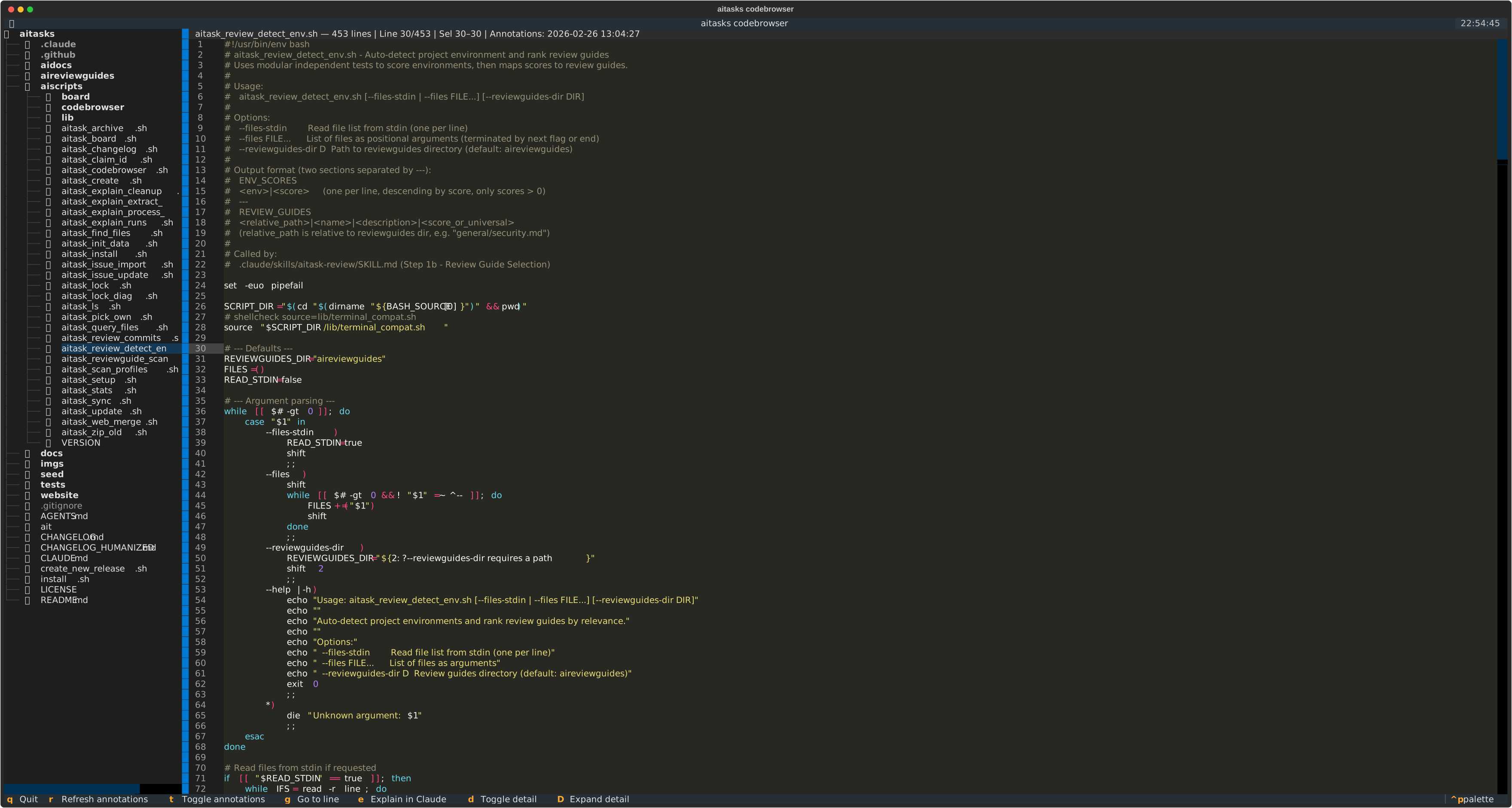
The ait codebrowser with file tree (left) and syntax-highlighted code viewer (right)
ait codebrowser
The browser detects the git project root, builds a file tree from git-tracked files, and cleans up stale explain data on startup.
Requirements: Python venv at ~/.aitask/venv/ with packages textual and pyyaml (installed by ait setup). Falls back to system python3 if the venv is not found.
The code browser has a three-panel layout:
File tree (left panel) — Shows git-tracked files in a directory tree. Excludes __pycache__, node_modules, and .git directories. The tree width adjusts based on terminal size.
Code viewer (center panel) — Displays the selected file with syntax highlighting (Monokai theme), line numbers, and an optional annotation gutter. An info bar at the top shows the filename, line count, cursor position, and annotation status.
Detail pane (right panel, hidden by default) — Shows the task or plan content for the annotation at the current cursor line. Toggle it with d.
Footer — Dynamic keybinding hints showing available actions.
Select a file in the tree to open it in the code viewer. Use Tab to cycle focus between the file tree, code viewer, and detail pane (if visible).
In the code viewer:
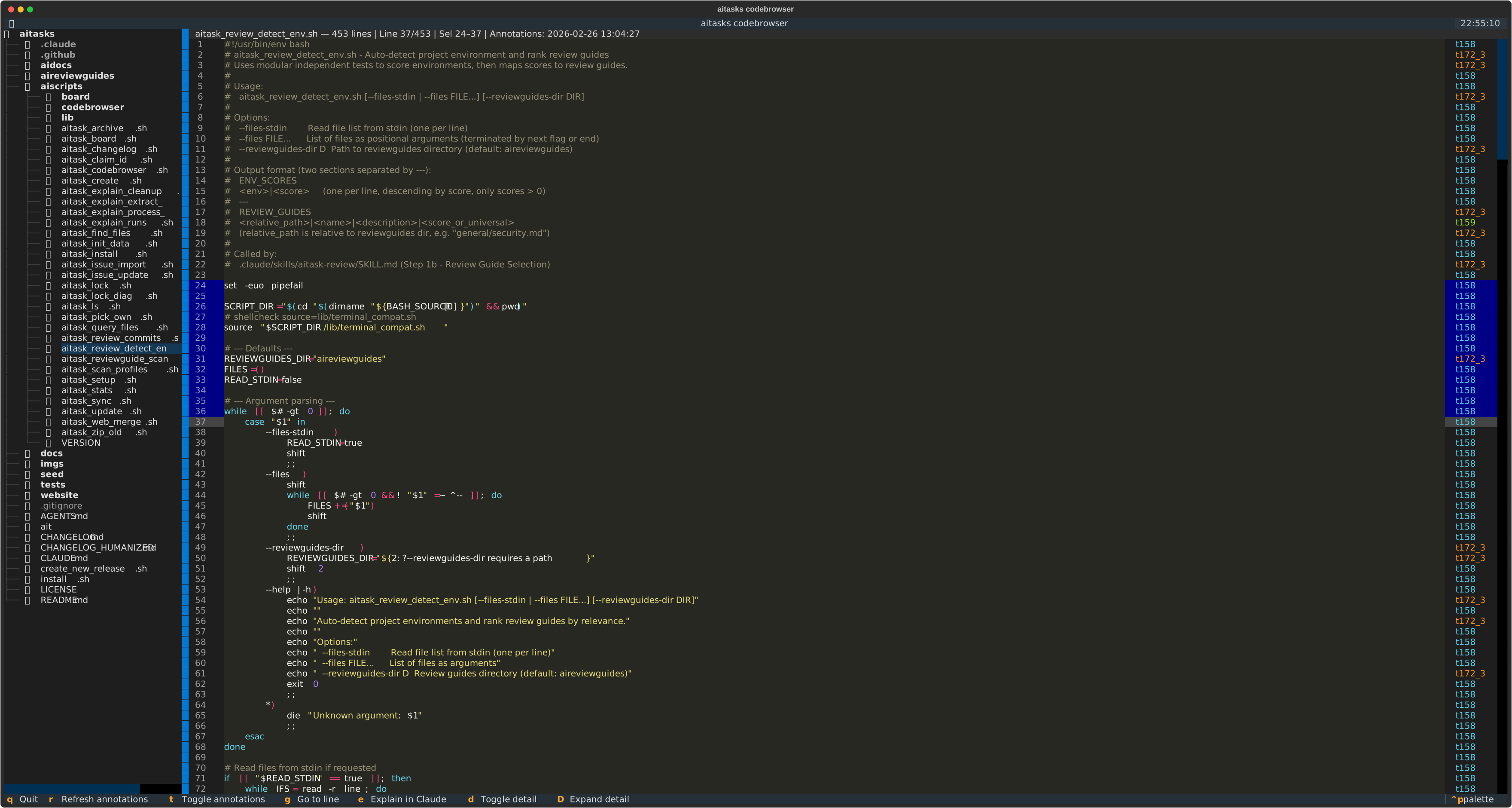
The annotation gutter shows color-coded task IDs for each code section
When you open a file, the codebrowser automatically generates or loads cached explain data for the file’s directory. This data maps line ranges to the aitasks that introduced or last modified them.
t130, t145) color-coded for visual distinctionEach unique task ID gets a color from a fixed palette (cyan, green, yellow, magenta, blue, red, bright cyan, bright green), cycling if there are more than 8 unique tasks.
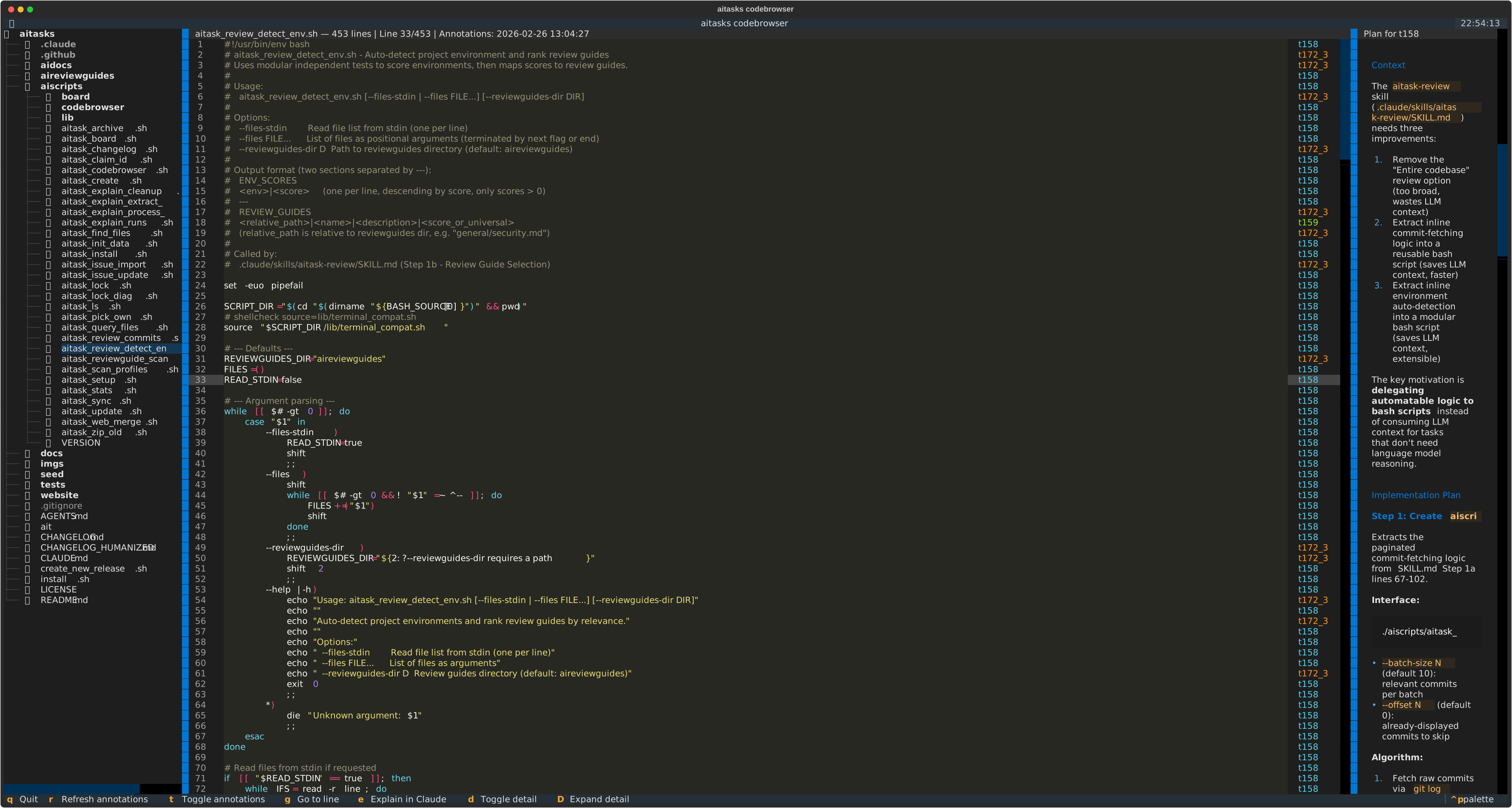
Full layout with the detail pane showing plan content for the annotated task at cursor
The detail pane provides context about the task annotating the current cursor line:
Press e to launch the configured code agent with the /aitask-explain skill targeting the current file. The code browser uses the code agent wrapper to resolve which agent and model to use for the explain operation. If you have a line selection active, the explain session focuses on that specific line range.
Before launching, the code browser performs a pre-flight check to verify the resolved agent binary is available in PATH. If the binary is not found, a notification appears instead of a failed launch.
A terminal emulator is opened automatically. If none is found, the codebrowser suspends and runs the agent in the current terminal.
This is useful when you want a deeper, conversational explanation of a code section — the codebrowser provides the visual overview, and /aitask-explain provides the detailed narrative.
See also:
/aitask-explain — The skill that generates annotation data and provides conversational code explanationsait explain-runs and ait explain-cleanup — Commands for managing explain run dataait codeagent — Configures which agent and model the code browser uses for explain sessionsNext: Workflow Guides
Step-by-step guides for code browser operations
Keyboard shortcuts, annotation pipeline, and technical details