How-To Guides
Task-oriented guides for using ait monitor
The ait monitor command launches an interactive TUI that shows every pane in the current tmux session, categorized as code agents, TUIs, or other panes, with a live preview of the focused pane and keystroke forwarding. It is the dashboard of the ait tmux-based development environment: from a single window you can watch agents work, jump to any other TUI, and interact with running processes without leaving the monitor.
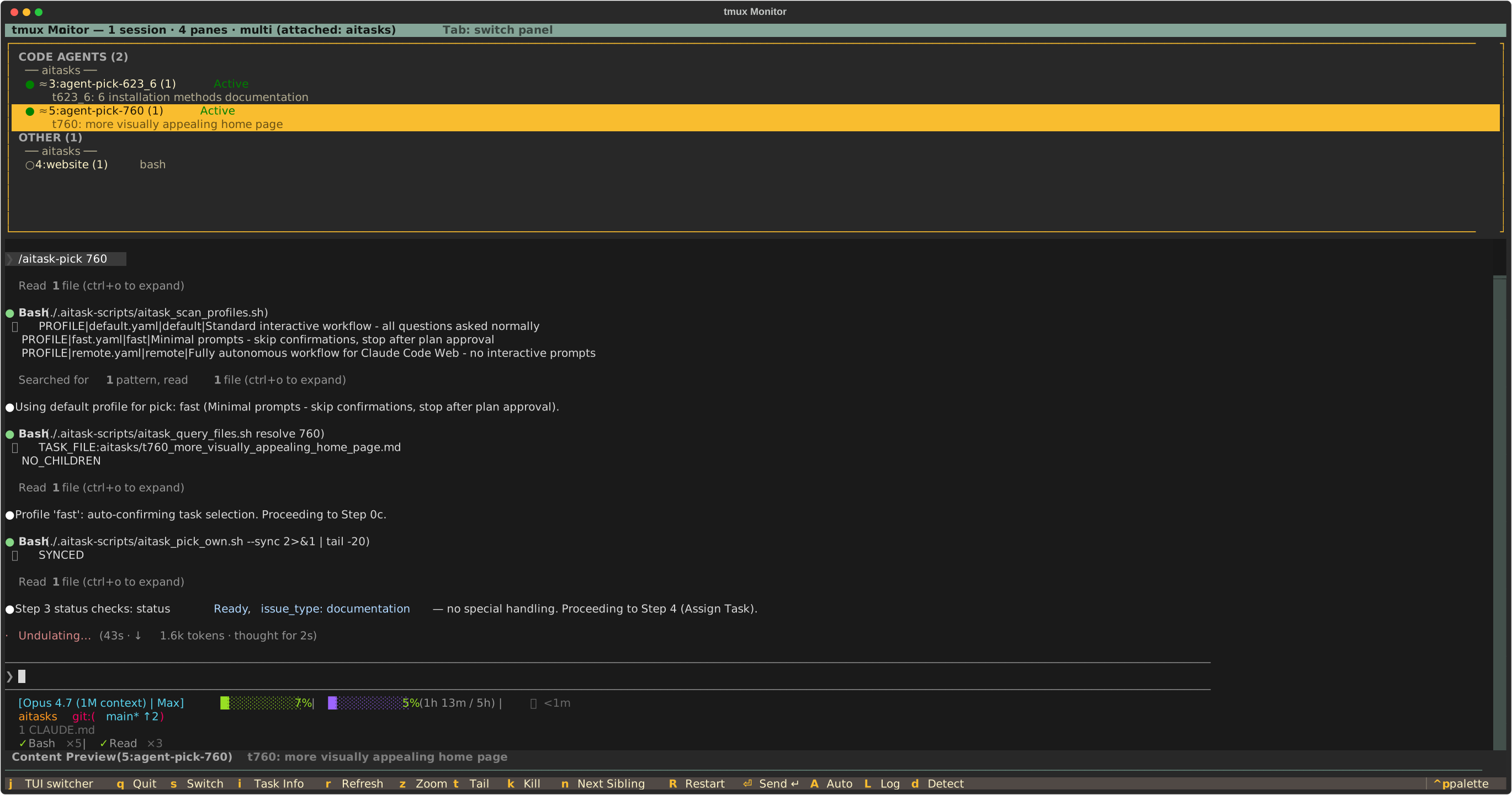
The ait monitor dashboard with categorized panes and live preview.
Customizable keys: every shortcut here can be rebound. Press
?in this TUI for the in-place editor, or open Settings → Shortcuts.
The recommended way to start monitor is via ait ide:
ait ide
ait ide creates (or attaches to) the tmux session whose name is configured in tmux.default_session and opens a monitor window in one step. Because it always passes an explicit session name, it bypasses the Session Rename Dialog.
To launch the monitor standalone from inside an existing tmux session:
ait monitor
If the current tmux session’s name does not match the configured tmux.default_session and the configured session does not already exist, monitor offers to rename the current session. See How to handle a session-name mismatch for details.
The monitor window has five stacked areas from top to bottom:
The pane list classifies each tmux window in the session:
agent-). These are running code agents invoked via ait codeagent.brainstorm-.Each card in the pane list shows the window name, a category badge, a status badge with a matching colored dot (Active, PROMPT, DONE, or IDLE — see How to Read the Pane List), and, for agent panes carrying a task ID in the window name, the task number.
The preview zone shows the content of the focused pane in real time. When you focus it, every keystroke you type is forwarded directly to the underlying tmux pane, so you can interactively control whatever is running there — answer an agent’s question, run a shell command, scroll a log — without switching tmux windows.
All navigation is keyboard-driven. Monitor uses a zone model: focus lives in the pane list zone, the preview zone, or the shadow zone, and Tab cycles between them. The shadow zone is only part of the cycle when the selected agent has a shadow companion and the terminal is wide enough to show both columns — otherwise Tab moves between the pane list and the preview exactly as before.
Enter keystroke to the focused tmux pane (useful to unblock an agent waiting for input without switching away)Enter keystroke to the focused tmux pane, same as aboveThe zone that currently has focus is the one your keystrokes reach. It is marked by a highlighted border and a green LIVE badge in that column’s header, so the target is never ambiguous.
Press j from any zone to open the TUI switcher overlay. The overlay lists the TUIs that are integrated with the tmux workflow (board, monitor, minimonitor, codebrowser, settings, stats, brainstorm, syncer). Select one and monitor either focuses the existing tmux window running that TUI or creates a new window and launches it. This is the fastest way to move between the ait dashboard and any other TUI without leaving tmux.
When aitask-data or main falls behind origin, the monitor’s session bar appends a compact desync summary (e.g., · desync: aitask-data 3↓). For an interactive surface that pulls/pushes/syncs the same refs, see the Syncer.
For the complete list of keybindings and configuration options, see the Reference.
Next: How-To Guides — step-by-step flows. Or go straight to the Reference for keybindings and configuration.
Task-oriented guides for using ait monitor
Keyboard shortcuts, configuration, and technical details for ait monitor