How-To Guides
Step-by-step guides for common Settings TUI tasks
ait settings
The Settings TUI requires the shared Python virtual environment (installed by ait setup) with the textual and pyyaml packages.
The Settings TUI organizes all configuration into four tabs, each accessible via a keyboard shortcut displayed in the footer.
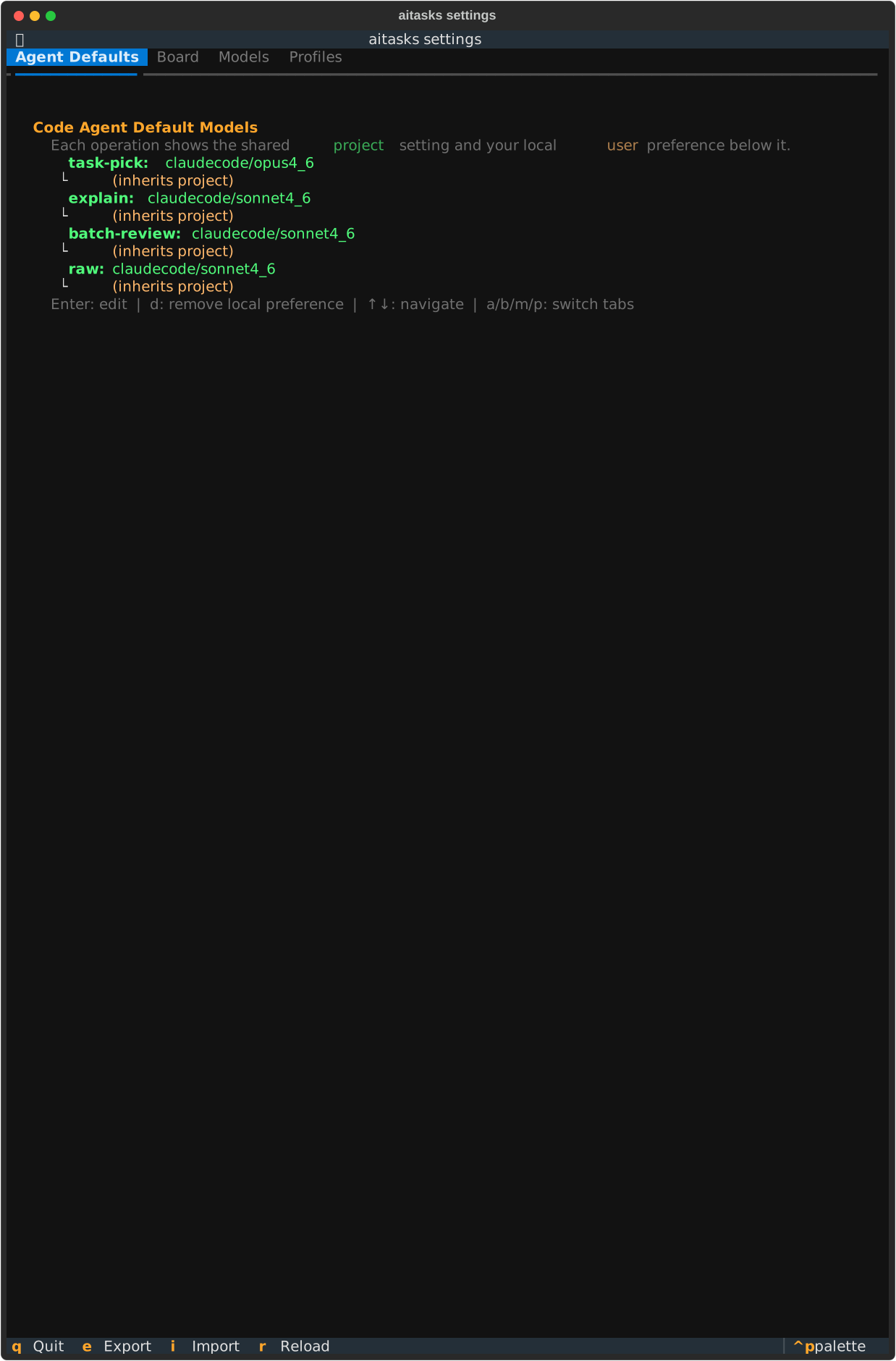
The Agent Defaults tab shows which code agent and model is configured for each operation
Shows the default agent/model for each operation (task-pick, explain, batch-review, raw). Each entry displays:
claudecode/opus4_6)Press Enter on any operation to change its agent/model through a two-step picker.
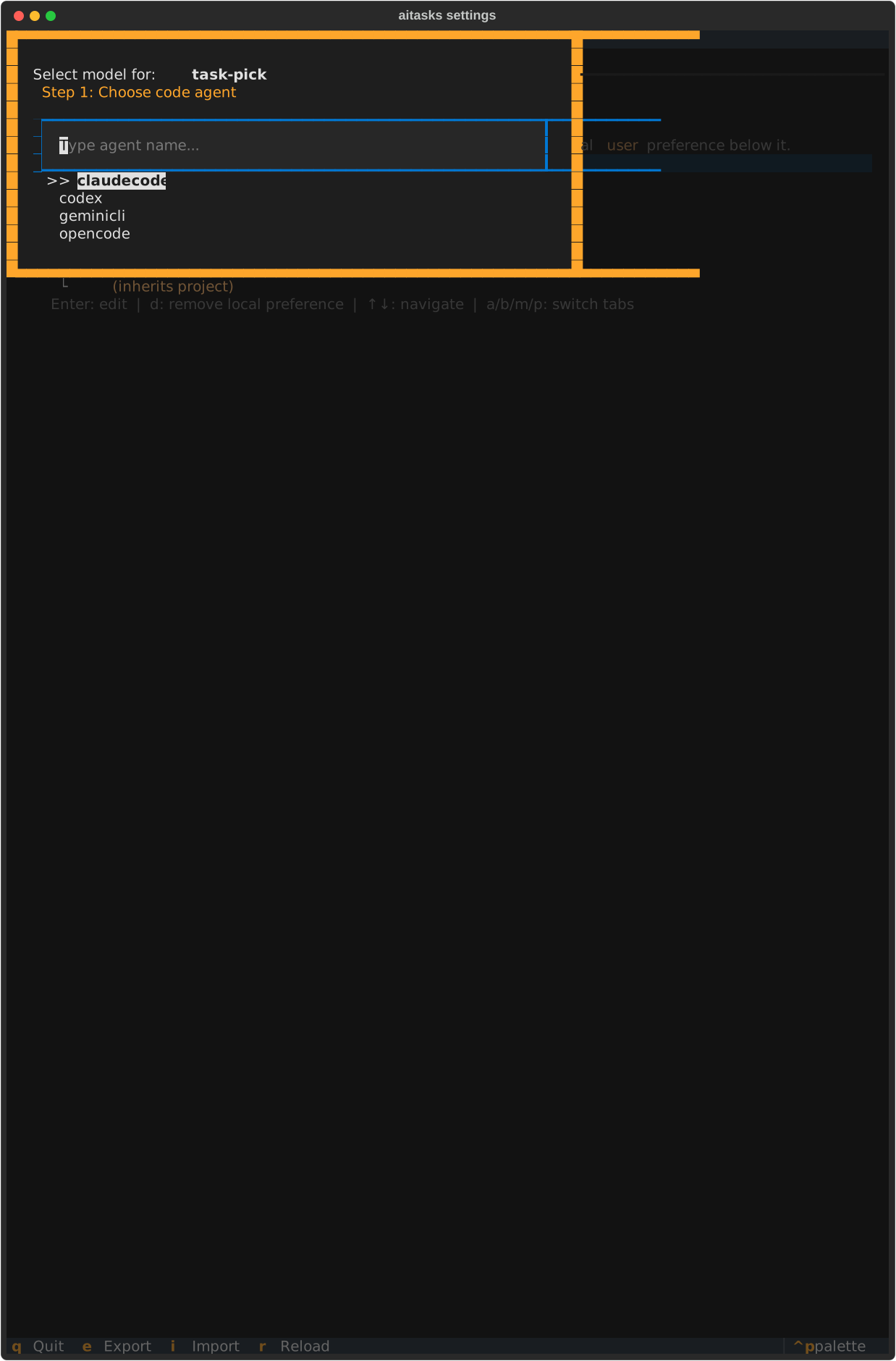
Step 1: Choose which code agent to use
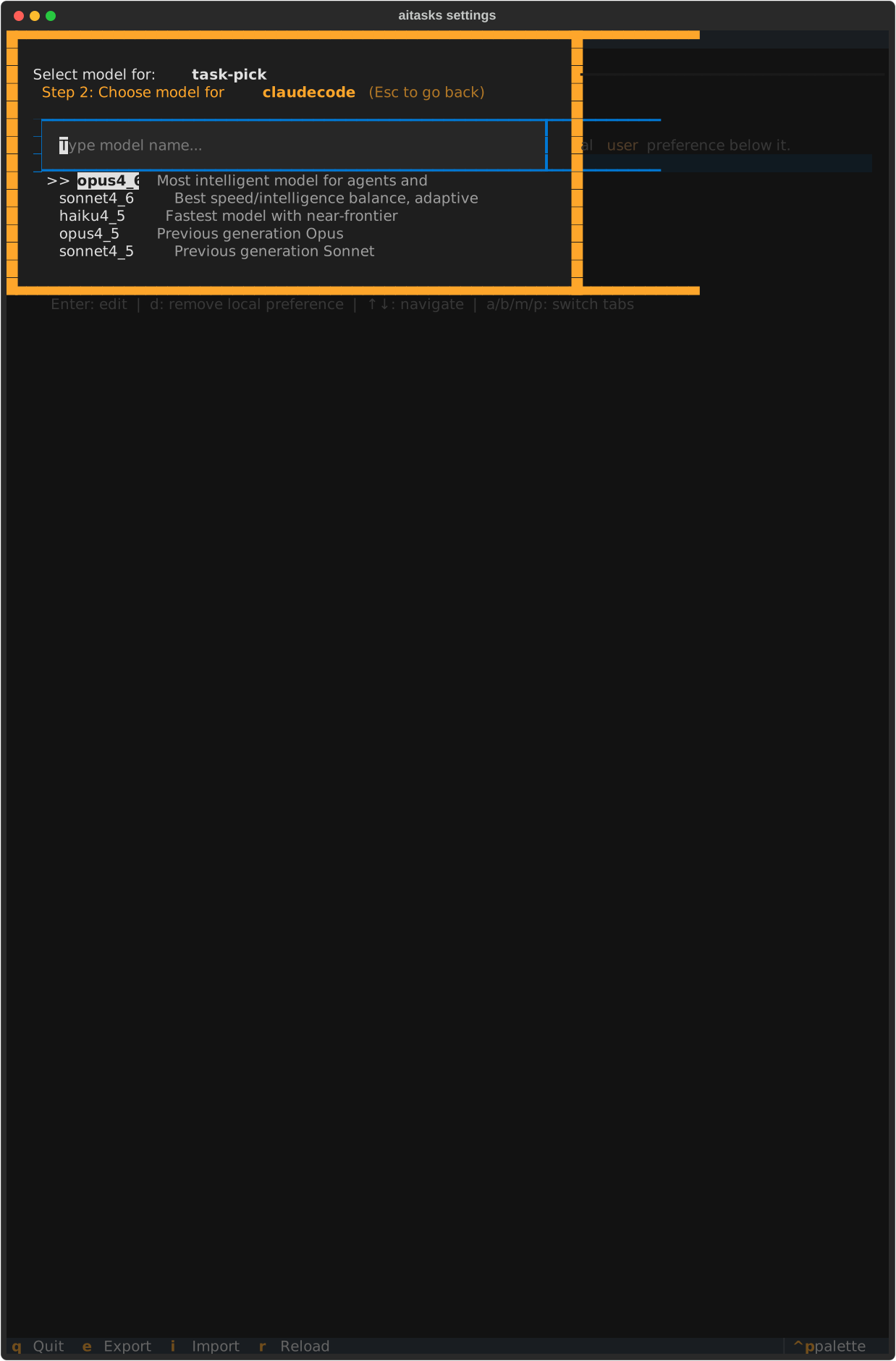
Step 2: Choose the model and whether to save to project or user config
Press d or Delete on an entry to remove a user override and revert to the project default.
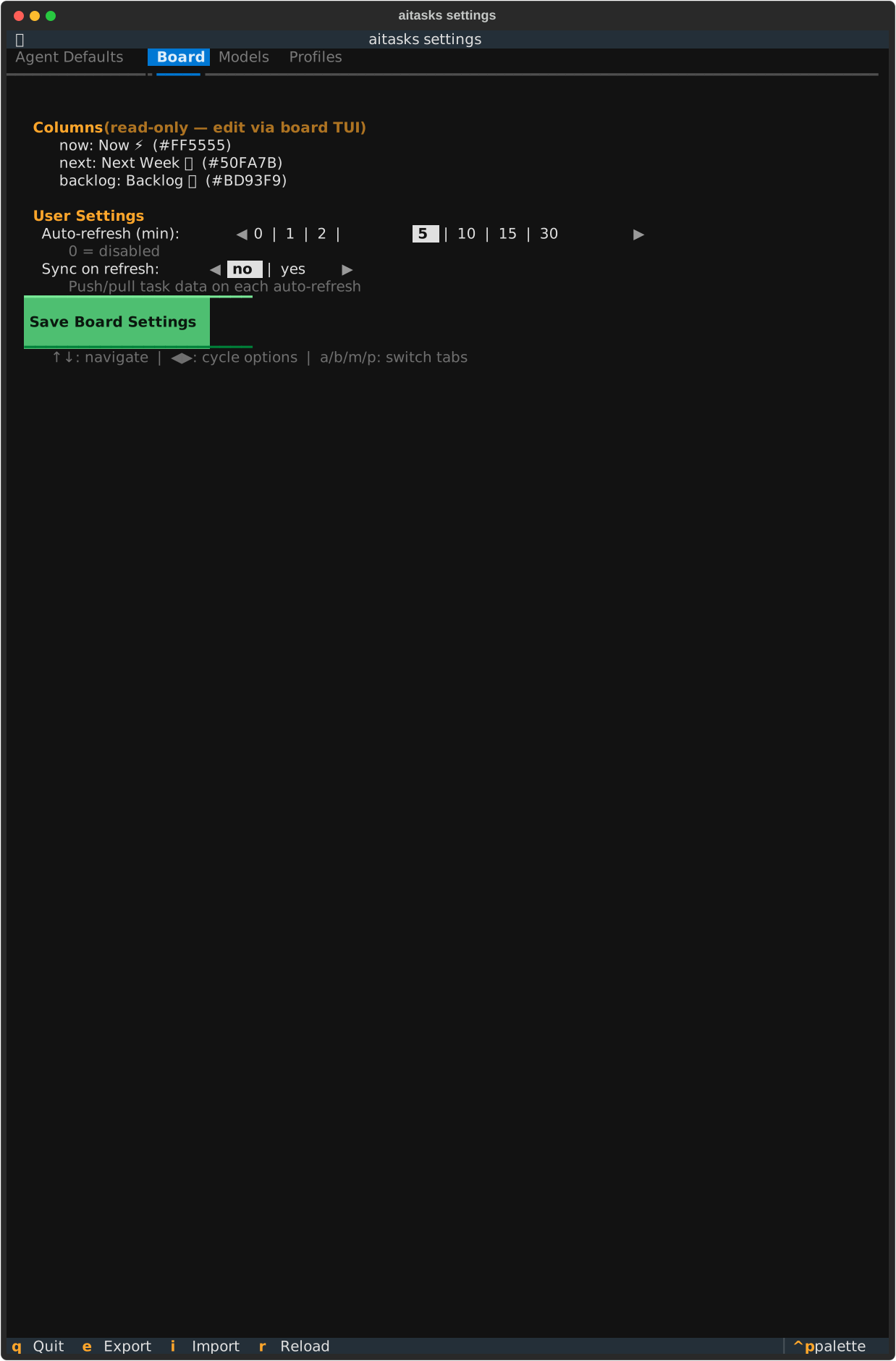
The Board tab displays column definitions (read-only) and editable user settings
Displays board configuration in two sections:
Auto-refresh (min) (cycle through 0, 1, 2, 5, 10, 15, 30 where 0 = disabled) and Sync on refresh (toggle whether push/pull runs on each auto-refresh)Press Save Board Settings to persist changes.
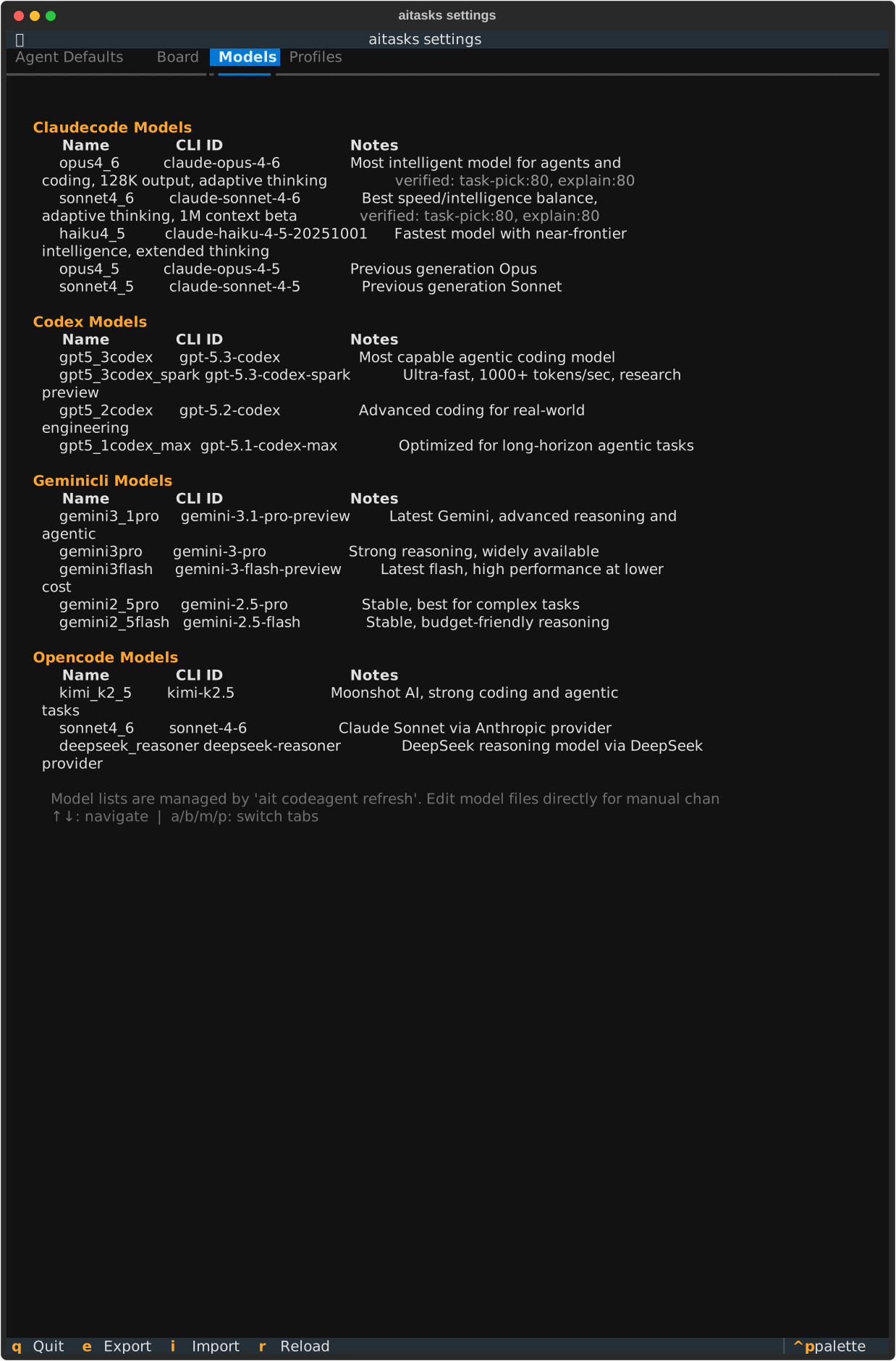
The Models tab is a read-only display of all configured models
Read-only display of all available models organized by agent (claudecode, codex, geminicli, opencode). For each model, shows:
Model definitions are managed by editing aitasks/metadata/models_<agent>.json files directly or using the /aitask-refresh-code-models skill.
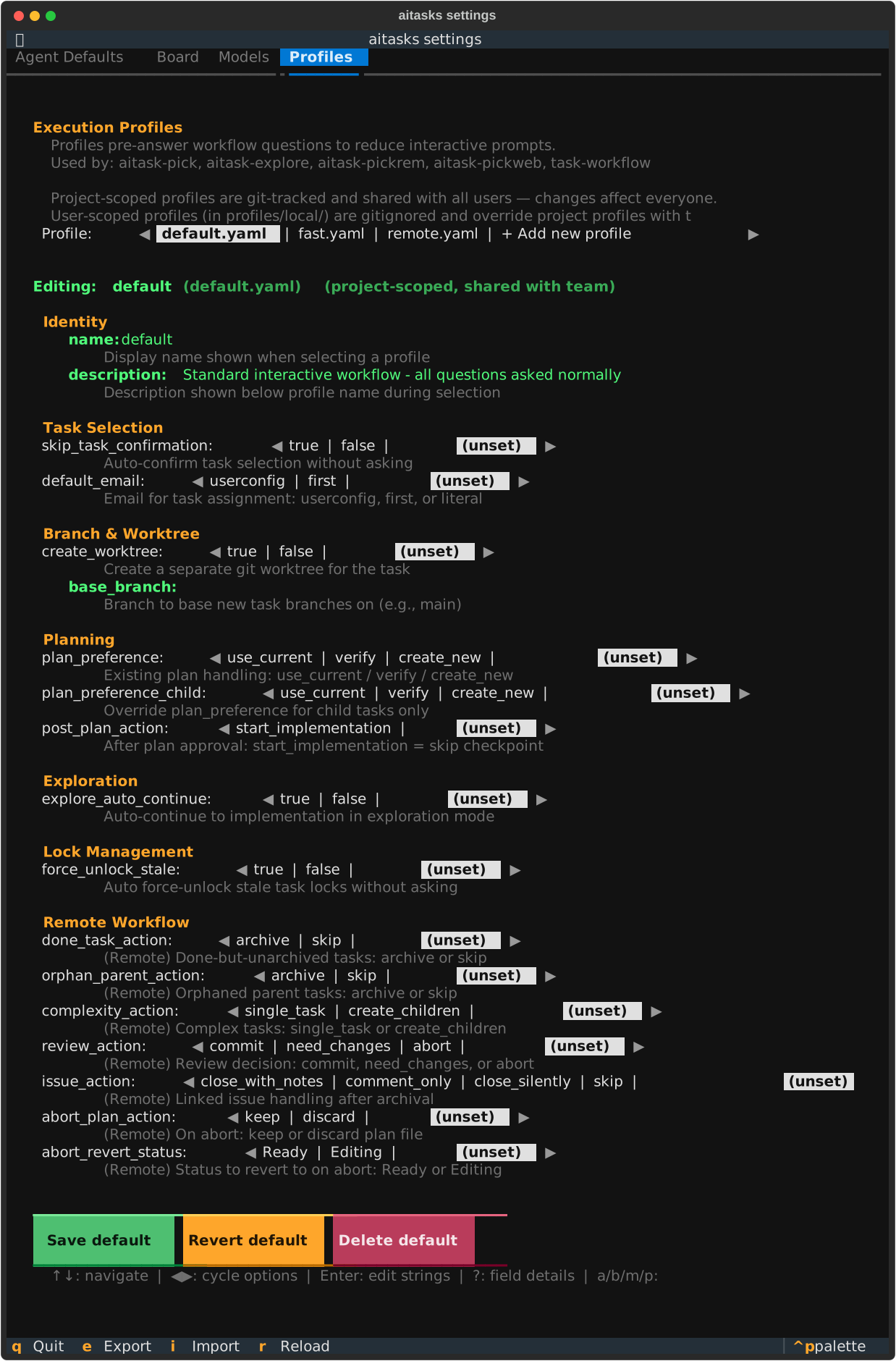
The Profiles tab lets you browse and edit execution profiles that control workflow behavior
Browse and edit execution profiles – YAML files that pre-answer workflow questions to reduce interactive prompts. Each profile contains settings organized into groups:
Fields use type-appropriate controls: boolean keys toggle between true/false/(unset), enum keys cycle through their options, and string keys open an edit dialog. Setting a value to (unset) removes it from the profile so the question is asked interactively at runtime.
| Key | Action |
|---|---|
| a | Switch to Agent Defaults tab |
| b | Switch to Board tab |
| m | Switch to Models tab |
| p | Switch to Profiles tab |
| Enter | Edit selected field |
| d / Delete | Remove user override (Agent Defaults) |
| e | Export all configs to .aitcfg.json bundle |
| i | Import configs from .aitcfg.json bundle |
| r | Reload all configs from disk |
| q | Quit |
Step-by-step guides for common Settings TUI tasks
Keyboard shortcuts, configuration files, and profile schema reference