How-To Guides
Step-by-step guides for common Settings TUI tasks
ait settings
The Settings TUI requires the shared Python virtual environment (installed by ait setup) with the textual and pyyaml packages.
The Settings TUI organizes configuration into tabs, each accessible via a keyboard shortcut displayed in the footer.
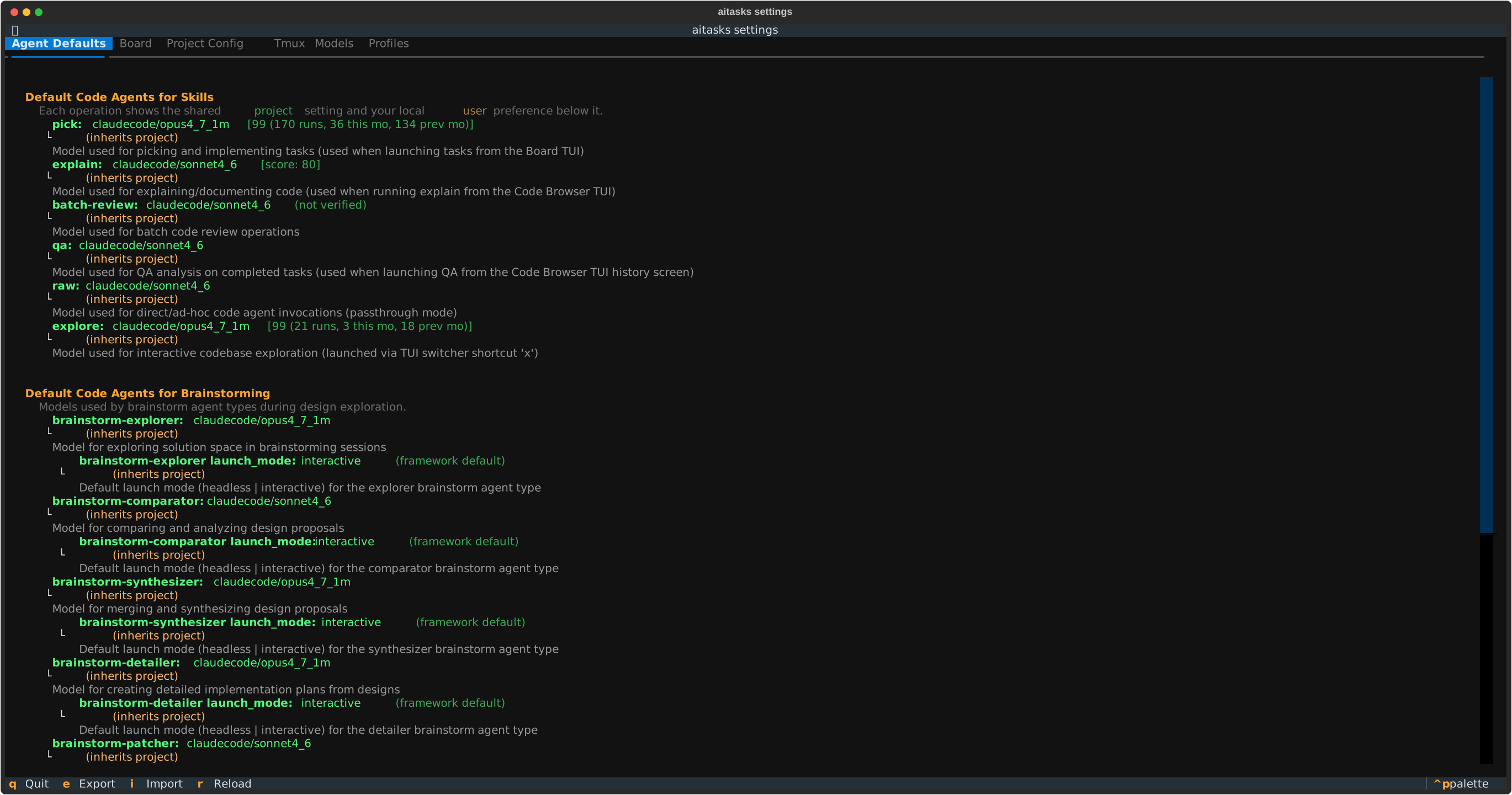
The Agent Defaults tab shows which code agent and model is configured for each operation.
Shows the default agent/model for each operation (task-pick, explain, batch-review, raw). These defaults are used when launching tasks from the Board TUI and running explain from the Code Browser TUI. Each entry displays:
claudecode/opus4_6)[96 (9 runs, 2 this mo)])all providers: 96 (12 runs, 3 this mo))Press Enter on any operation to change its agent/model through the model picker.
The picker opens with a Top Verified list showing the highest-scoring models for the selected operation across all providers. Select a model directly or choose Browse all models to use the full agent/model browser.
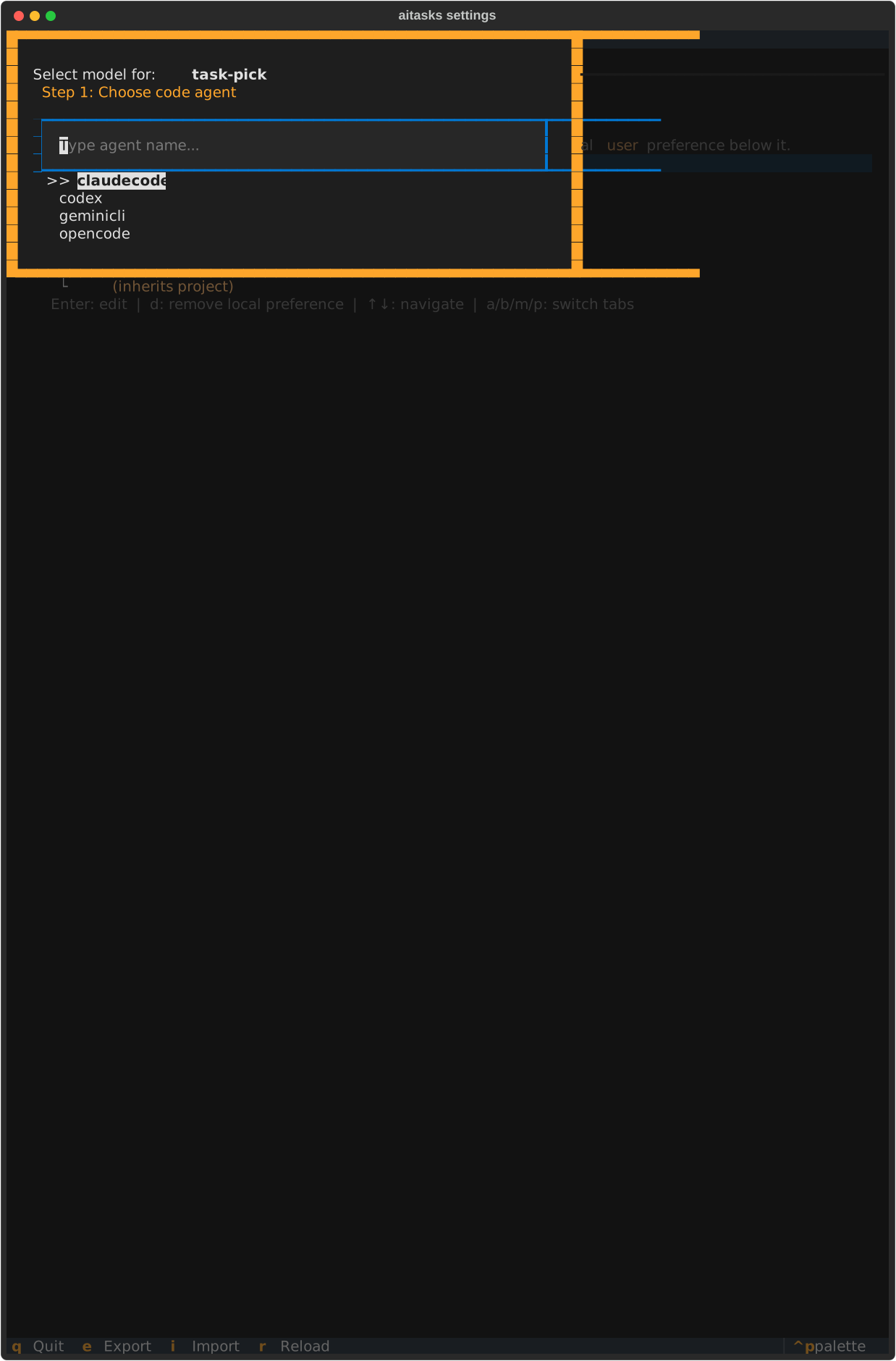
Step 1: Choose which code agent to use (via Browse all models)
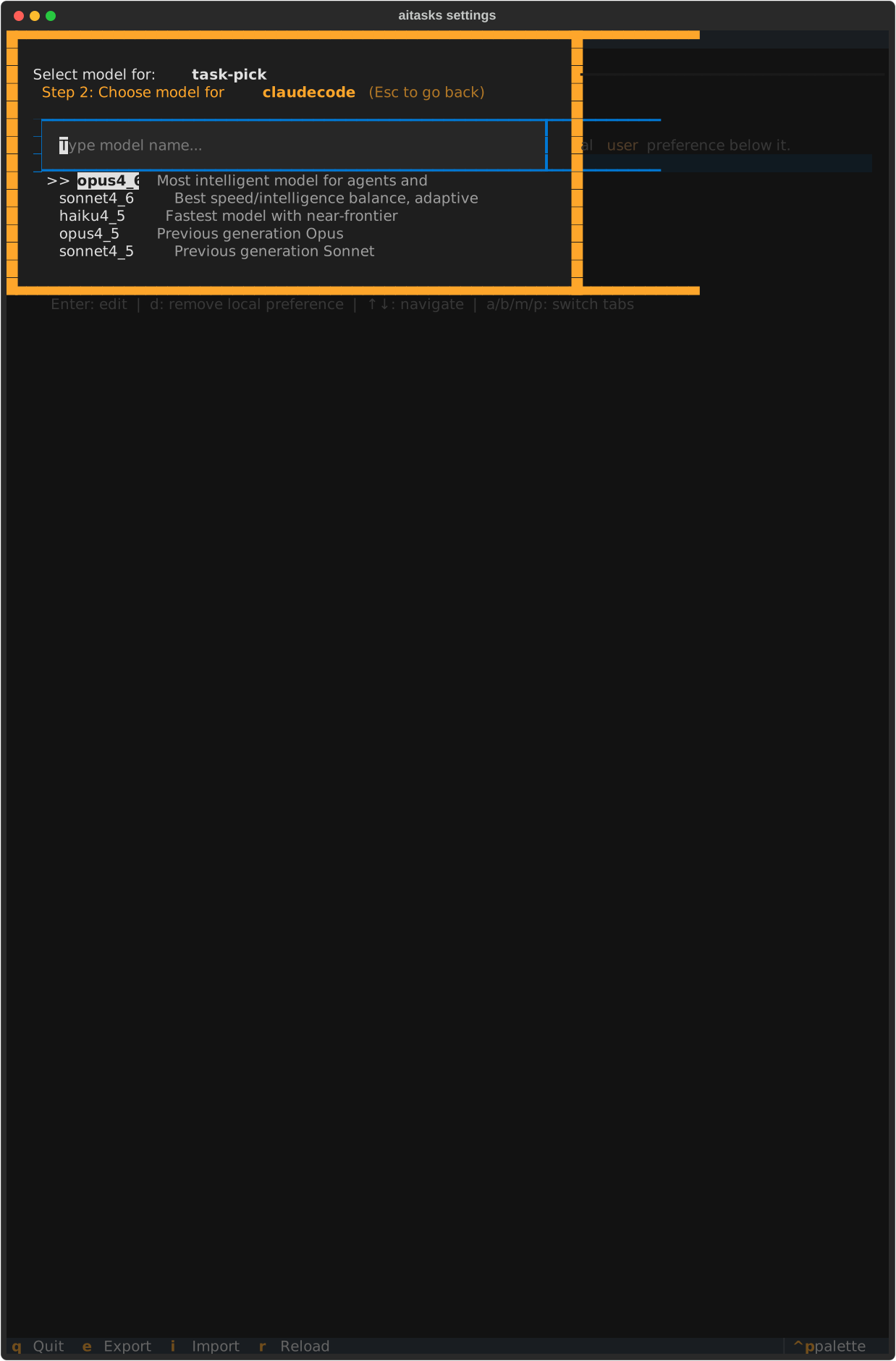
Step 2: Choose the model and whether to save to project or user config
Press d or Delete on an entry to remove a user override and revert to the project default.
When an entry’s model has been superseded by a newer registered model of the same agent (the same record ait codeagent check-superseded reads), a note appears directly under that entry: ⚠ superseded by claudecode/opus5_5. The note is per layer – a [USER] entry that inherits the project value carries no note of its own. If you declined that same switch when ait codeagent check-superseded offered it, the note is dimmed and says (kept via check-superseded); the Settings TUI shows that choice but never changes it.
To switch a marked entry to the newer model:
A switch changes only the selected entry’s layer. A project switch is saved to codeagent_config.json and committed; a user switch is saved to codeagent_config.local.json and never committed. The current value is re-read from disk first: if the entry or the offered model changed since the tab was drawn, nothing is switched and the tab refreshes. If you have already bound o to another Settings action, that binding keeps the key and Enter remains the way to switch.
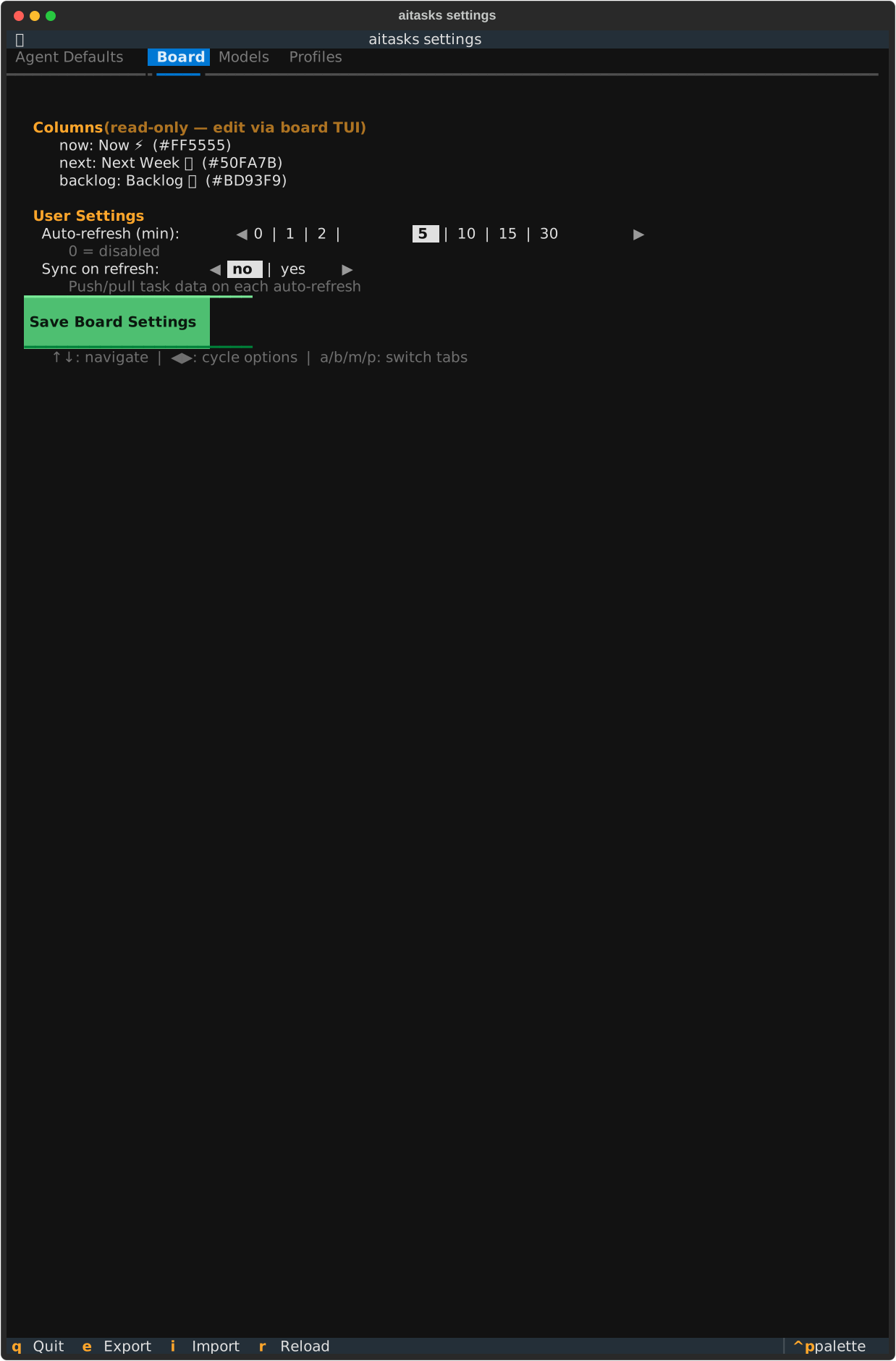
The Board tab displays column definitions (read-only) and editable user settings
Displays board configuration in two sections:
Auto-refresh (min) (cycle through 0, 1, 2, 5, 10, 15, 30 where 0 = disabled) and Sync on refresh (toggle whether push/pull runs on each auto-refresh)Press Save Board Settings to persist changes.
Edit shared values from aitasks/metadata/project_config.yaml directly in the TUI. The initial editable keys are:
codeagent_coauthor_domain – Shared email domain used for custom code-agent Co-authored-by trailersverify_build – Build verification command or YAML list of commands run after implementationPress Enter on a row to edit the value, then use Save Project Config to persist it.
Edit per-user project-group membership for registered projects. The tab reads and writes through ait projects group ..., so the registry stays consistent with the CLI.
The table lists each registered project, its effective group, and its registry status. Press Enter on a row to assign or change its group, or select a row and use:
project.project_group.Choose where ait artifact stores blobs. The tab edits the artifacts: block of aitasks/metadata/project_config.yaml:
local, dir, gitbranch) with ← / →. Selecting gitbranch while no branch is set fills in aitask-artifacts.gitbranch backend uses. The name is checked before the dialog closes, so a reserved or malformed name is refused there.Press Save Artifact Settings to validate the whole block with the artifact registry and commit it; nothing is written if the registry refuses it. local as the default is saved by removing the key. A dir backend has no row here — write its absolute path in the YAML first, and then dir can be saved as the default. Changing the branch once a store exists also needs ait artifact gitbranch-migrate --from <old> --to <new>; the tab shows that command when the branch changes. Saving with a gitbranch branch also updates the routine-fetch exclusion, so git fetch and ait sync skip the store branch; if that update fails, a warning names the command to re-run. Saving rewrites project_config.yaml without its comments.
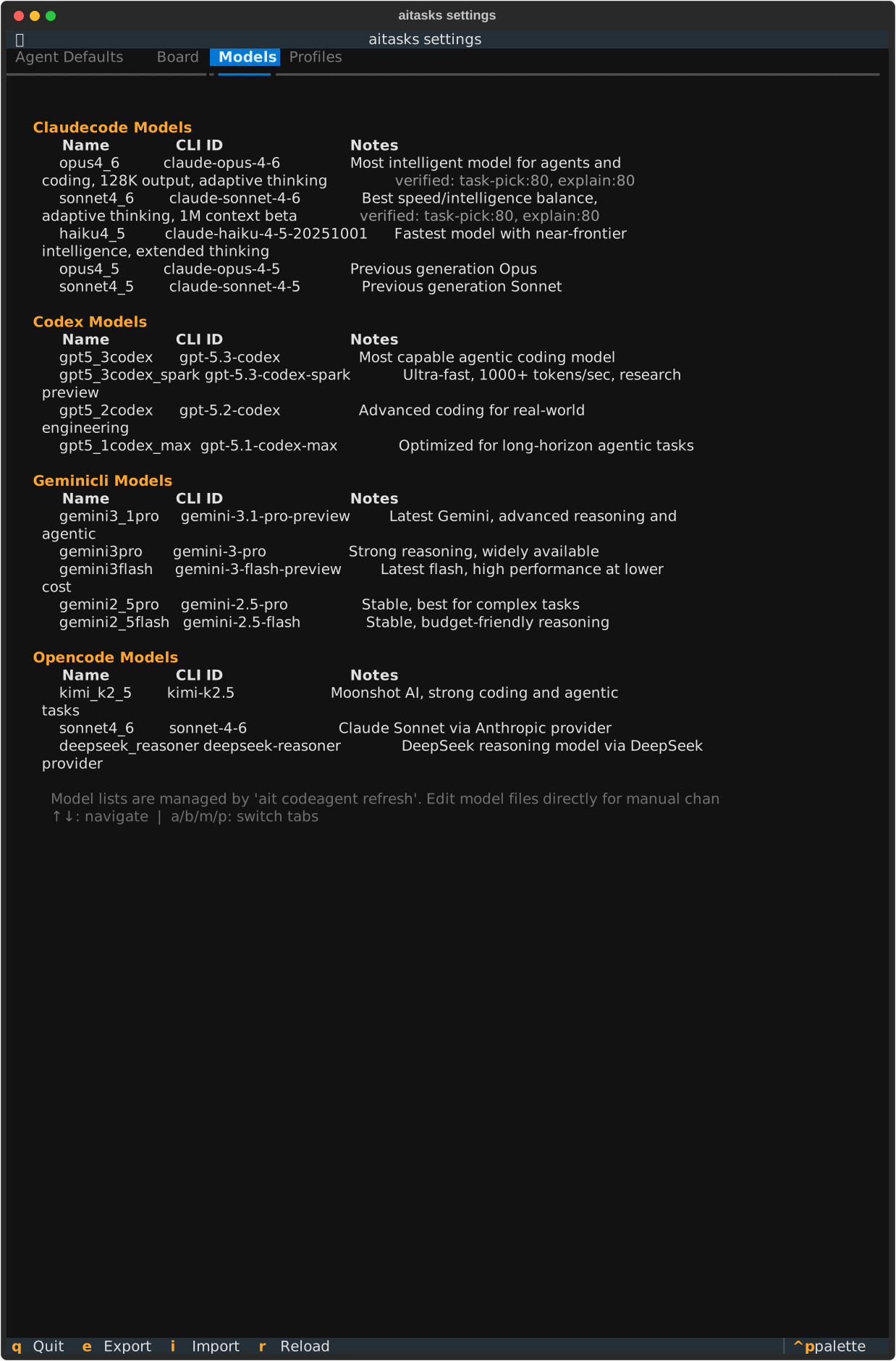
The Models tab is a read-only display of all configured models
Read-only display of all available models organized by agent (claudecode, codex, opencode). For each model, shows:
pick: 96 (9 runs, 2 this month))Model definitions are managed by editing aitasks/metadata/models_<agent>.json files directly or using the /aitask-refresh-code-models skill.
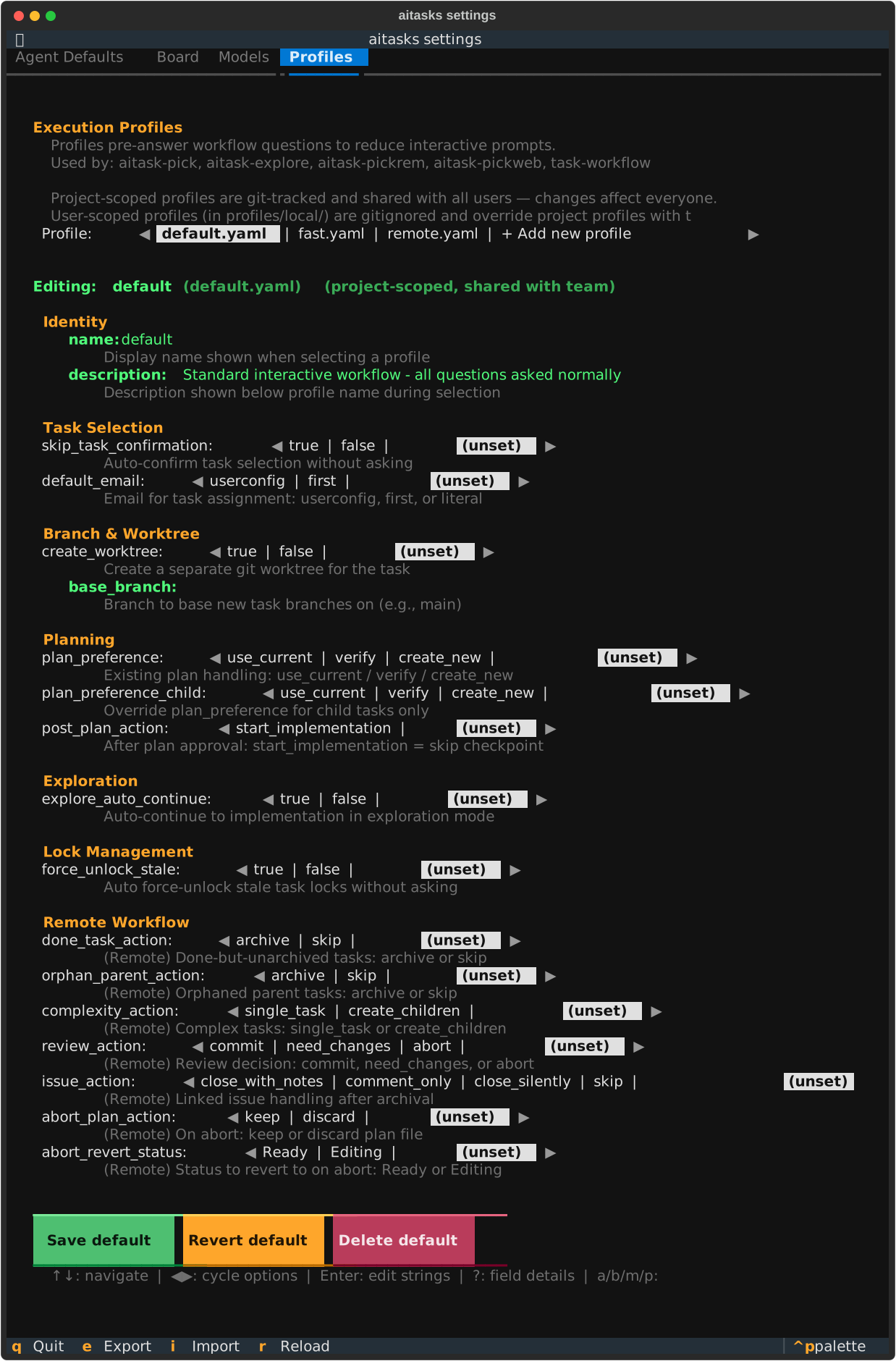
The Profiles tab lets you browse and edit execution profiles that control workflow behavior
Browse and edit execution profiles – YAML files that pre-answer workflow questions to reduce interactive prompts. Each profile contains settings organized into groups:
Fields use type-appropriate controls: boolean keys toggle between true/false/(unset), enum keys cycle through their options, and string keys open an edit dialog. Setting a value to (unset) removes it from the profile so the question is asked interactively at runtime.
Browse and edit the keyboard shortcuts of every TUI in one place — not just Settings. The tab lists all bindings in a single table:
| Column | Meaning |
|---|---|
| Scope | The TUI (or sub-dialog) the action belongs to (e.g. board, monitor, shared) |
| Action | The internal action identifier |
| Current | The key currently in effect |
| Default | The built-in key |
| Label | The mnemonic label shown in that TUI |
| Origin | user if you have overridden the key, otherwise default |
Press Enter on a row to open the in-place editor for that scope, where you rebind (Enter), revert an unsaved edit (r), reset to default (d), and save (s). Rebinds apply the next time you launch the affected TUI.
Two buttons act on the table:
Exporting and importing shortcuts is part of the general settings Export (e) and Import (i) flow rather than a dedicated button: tick the Shortcuts category. Export writes only the shortcuts: subtree into the .aitcfg.json bundle (your email and other local settings are never included). Import deep-merges those keys into aitasks/metadata/userconfig.yaml, preserving the rest of the file.
| Key | Action |
|---|---|
| a | Switch to Agent Defaults tab |
| b | Switch to Board tab |
| c | Switch to Project Config tab |
| g | Switch to Project Groups tab |
| t | Switch to Tmux tab |
| k | Switch to Artifacts tab |
| m | Switch to Models tab |
| p | Switch to Profiles tab |
| s | Switch to Shortcuts tab |
| Enter | Edit selected field |
| d / Delete | Remove user override (Agent Defaults) |
| o | Switch a superseded model to its newer model (Agent Defaults) |
| e | Export all configs to .aitcfg.json bundle |
| i | Import configs from .aitcfg.json bundle |
| r | Reload all configs from disk |
| q | Quit |
Next: How-To Guides — common tasks like editing agents, creating profiles, exporting bundles. Or jump to the Reference for the full tab/field/profile schemas.
Step-by-step guides for common Settings TUI tasks
Keyboard shortcuts, configuration files, and profile schema reference